
Most Schema.org tutorials conflate vocabulary with syntax. They show you JSON-LD code without explaining how the type system works. Wrong order.
Schema.org is the vocabulary. JSON-LD is the syntax. Schema.org defines over 800 types and 1,504 properties (as of v29.4). Google supports roughly 30 of those types for rich results. That gap leads to implementation failures: you implement a type hoping for SERP visibility, and nothing happens because Google doesn’t support it.
This guide shows you how to navigate Schema.org’s type documentation. How to read a type page. How inheritance works. Which properties you can actually use. This article covers how the vocabulary system works.
The first question: what is Schema.org, and why does the vocabulary-versus-syntax distinction matter?
What Is Schema.org – And What It Isn’t
Schema.org is a collaborative vocabulary project. Google, Bing, Yahoo, and Yandex launched it in June 2011 to create a shared standard for structured data. Before Schema.org, each search engine supported different formats. Implementing structured data meant writing separate markup for each platform.
Schema.org solved that fragmentation. One vocabulary. Multiple engines.
The project is now maintained as an open community initiative. Anyone can propose new types and properties through GitHub. The vocabulary has grown from a few hundred types at launch to over 800 as of 2026.
Schema.org is format-agnostic. You can implement it using JSON-LD, Microdata, or RDFa. The vocabulary stays the same. Only the syntax changes.
Vocabulary versus syntax. The vocabulary defines what you can say: types like Article, Product, Organization, and the properties each type accepts. Syntax defines how you write it. JSON-LD wraps the vocabulary in JavaScript objects. Microdata embeds it in HTML attributes. Different encoding, same meaning.
Technically, Schema.org functions as an ontology – it defines not just terms but the relationships between them. Types inherit from parent types. Properties connect entities to other entities. The vocabulary encodes meaning about how things relate, not just what things are called.
A common confusion: “how do I add Schema.org to my page?” is the wrong question. You don’t download Schema.org. You reference it in your JSON-LD code using the vocabulary it defines. For syntax implementation, see our JSON-LD tutorial.
For why schema markup matters to SEO and how it connects to rich results and AI search, see our complete guide. This article stays focused on the vocabulary layer.
The vocabulary is organized as a type hierarchy. That hierarchy determines which properties you can use.
How the Type Hierarchy Works
Schema.org organizes every type in a tree structure. Thing sits at the root – the ultimate ancestor with no parent type. Everything else inherits from it.
The hierarchy works like this: general types at the top, specific types at the bottom. Thing is the most general type possible. It has properties that apply to anything: name, description, url, image. Every other type in Schema.org descends from Thing and inherits those properties.
As you move down the tree, types get more specific. Thing branches into broad categories like CreativeWork, Organization, Person, Place, Event, Action, and Intangible. CreativeWork branches into Article, Book, Movie, MusicRecording. Article branches into NewsArticle, BlogPosting, Report, ScholarlyArticle.
Some of these top-level types are abstract – meant as organizational nodes in the hierarchy, not for direct implementation. Intangible groups non-physical concepts like services, offers, and structured values. You wouldn’t use @type: "Intangible" directly; you’d use a specific descendant like Offer or Service.
Each level adds properties specific to that category. CreativeWork adds author, datePublished, headline, publisher. Article adds articleBody, wordCount. NewsArticle adds dateline, printColumn, printEdition.
The pattern repeats at every level. Start general. Get specific.
This hierarchy:
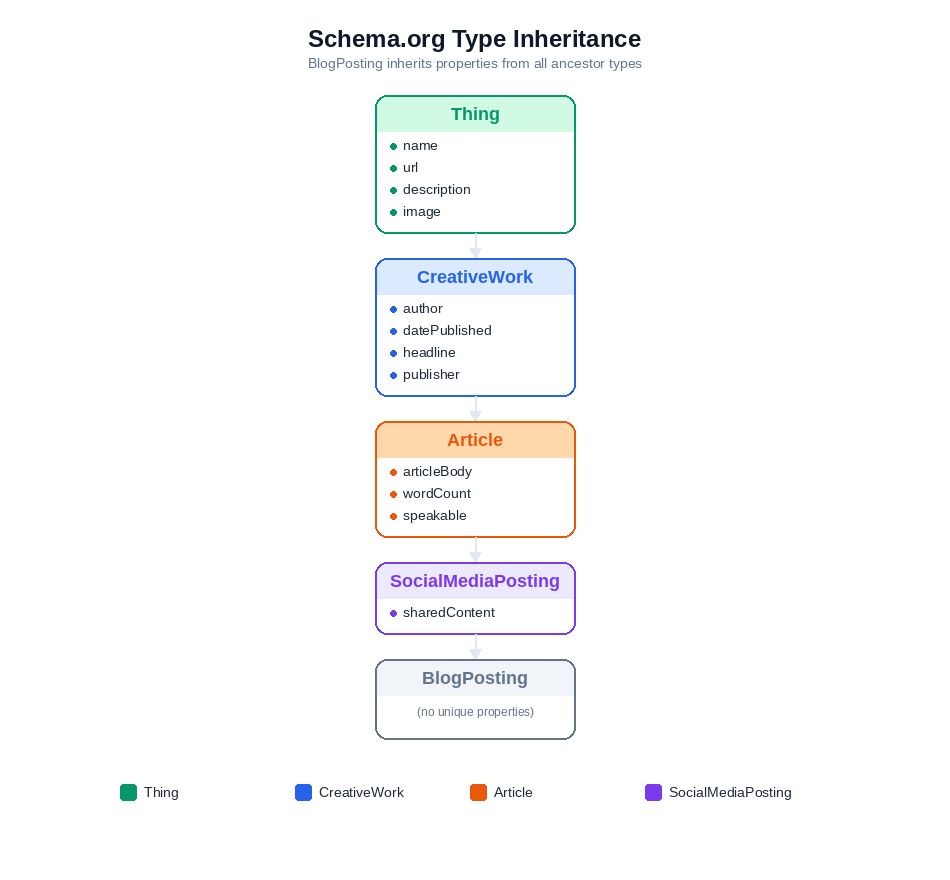
Thing → CreativeWork → Article → SocialMediaPosting → BlogPosting
Thing defines core globals like name, url, and description. CreativeWork adds editorial context such as author, datePublished, headline, and about. Article introduces the content body via articleBody and wordCount. SocialMediaPosting adds sharedContent. BlogPosting defines no unique properties of its own – it exists primarily for semantic classification.
More specific types inherit everything from their parents. BlogPosting doesn’t just have BlogPosting properties. It has properties from SocialMediaPosting, Article, CreativeWork, and Thing. All five levels.
Why Hierarchy Matters for Implementation
You can’t build complete markup by checking only the specific type’s documentation page.
If you’re implementing BlogPosting and you only look at the BlogPosting type page on Schema.org, you’ll find zero unique properties listed. The headline property comes from CreativeWork. The articleBody property comes from Article. The sharedContent property comes from SocialMediaPosting. The name property comes from Thing.
To find every available property, trace the inheritance chain. Check the specific type. Check its parent. Check the parent’s parent. Repeat until you hit Thing.
This step gets skipped constantly. Someone implements Article schema, can’t find the author property on the Article page, and gives up. It’s one level up in CreativeWork.
How to Read a Schema.org Type Page
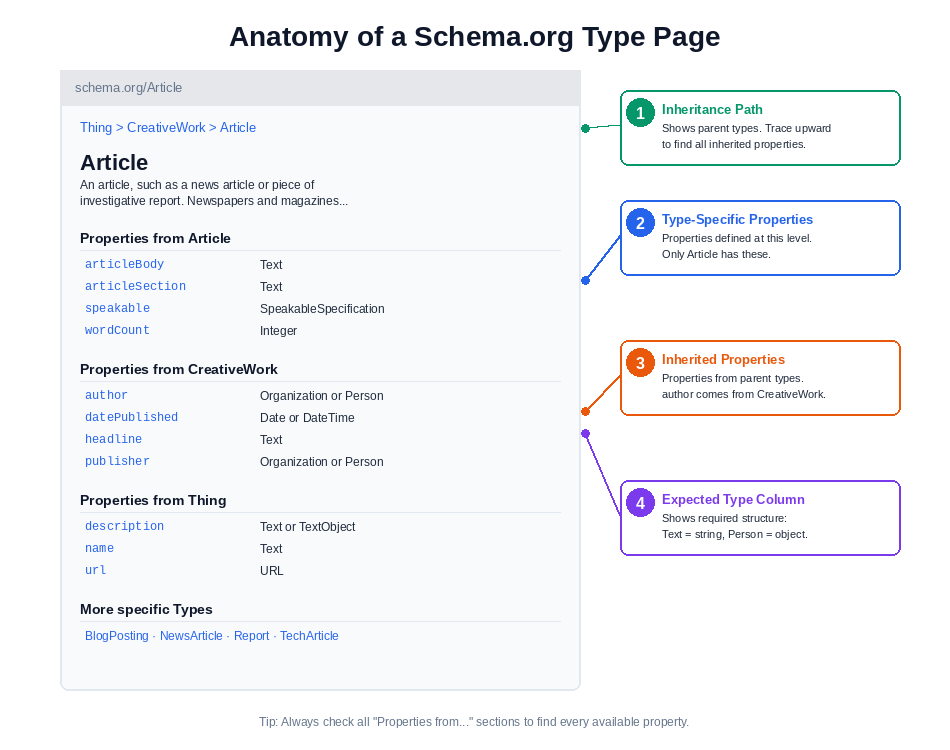
Open schema.org/Article in a new tab. You’re looking at the standard layout every Schema.org type page uses. Learning to read this one teaches you how to read all of them.
The page structure:
The breadcrumb at the top shows inheritance. Thing > CreativeWork > Article. That tells you Article inherits from CreativeWork, which inherits from Thing. You need properties from all three levels.
Properties from Article appears first. This section lists properties specific to the Article type: articleBody, articleSection, pageEnd, pageStart, pagination, speakable, wordCount. These don’t exist on the parent types. They’re Article-only.
Properties from CreativeWork appears next. These are inherited properties: about, author, dateCreated, dateModified, datePublished, headline, publisher, text. Article can use them because it inherits from CreativeWork.
Properties from Thing appears last. These are root-level properties every type inherits: description, identifier, image, name, url. The most general properties that apply to anything.
Each property row shows two critical pieces of information. The property name in the left column. The expected type in the right column.
The expected type determines what value you can assign. This isn’t optional information. It’s the type system telling you what kind of data the property accepts.
More specific Types appears at the bottom if child types exist. For Article, this lists AdvertiserContentArticle, NewsArticle, Report, SatiricalArticle, ScholarlyArticle, SocialMediaPosting, TechArticle. These are types that inherit from Article the same way Article inherits from CreativeWork.
Superseded properties appear with a note at the bottom of their row saying “Superseded by [new property].” If you see this warning, use the newer property instead. For example, vendor was superseded by seller on Offer. You can find the full history of property changes in the Schema.org release notes.
For a complete implementation walkthrough of a specific type, see our FAQPage schema implementation guide.
How to Find the Right Type
Schema.org’s built-in search (top-right of every page) works for exact matches.
For exploratory searches, use
site:schema.org [your term]in Google. This finds related types faster.
Example: searching “subscription” on Schema.org finds SubscribeAction but won’t surface PaymentSubscription without the site: operator.
The full type hierarchy page shows every type in a collapsible tree. Use it when you need to browse rather than search.
What expectedType Actually Means
The expected type column isn’t a suggestion. It defines what your JSON-LD structure must look like.
Schema.org defines a set of DataTypes for primitive values: Text, Number, Integer, Boolean, Date, DateTime, Time, URL. When a property expects one of these, you assign a simple value.
If expectedType shows Text, you assign a string:
"description": "A guide to reading Schema.org type pages"
If expectedType shows a Schema.org type like Person, you need a nested object:
"author": {
  "@type": "Person",
  "@id": "https://squin.org/#person",
  "name": "Jaan Koppel"
}
If expectedType shows Text or URL, either works:
"image": "https://example.com/image.jpg"
or with full metadata:
"image": {
  "@type": "ImageObject",
  "@id": "https://example.com/image.jpg#image",
  "url": "https://example.com/image.jpg",
  "width": 1200,
  "height": 630
}
Multiple expected types mean you choose the structure that matches your data. Google doesn’t prefer one over the other. Pick what fits.
Skipping the expected type column leads to validation errors. Assigning a string where Schema.org expects an object triggers a Rich Results Test failure.
Read the expected type. Match the structure.
Multi-Value Properties: When to Use Arrays
Many properties accept multiple values. An article can have multiple authors. A product can have multiple images. A page can be about multiple topics.
When a property allows multiple values, use a JSON array:
"author": [
  {
    "@type": "Person",
    "@id": "https://squin.org/#person",
    "name": "Jaan Koppel"
  },
  {
    "@type": "Person",
    "name": "Alex Chen"
  }
]
The same pattern works for any multi-value property:
"about": [
  {
    "@type": "Thing",
    "@id": "https://www.wikidata.org/wiki/Q3475322",
    "name": "Schema.org"
  },
  {
    "@type": "Thing",
    "@id": "https://www.wikidata.org/wiki/Q6108942",
    "name": "JSON-LD"
  }
]
Schema.org’s documentation doesn’t always indicate whether a property accepts multiple values. The general rule: if it makes semantic sense to have more than one, arrays are valid. Check Google’s type-specific documentation for any restrictions on rich result eligibility.
Enumerations Require URLs, Not Strings
Some properties expect an Enumeration value – a controlled vocabulary of specific URLs.
Common mistake: using "availability": "In Stock" in Product schema.
Correct:
"availability": "https://schema.org/InStock"
Check the expectedType column. If it shows something like ItemAvailability, that’s an enumeration. Click through to see the valid URL values.
Another common error: trying to use "@type": "ItemAvailability" as if it were a nested object. Enumerations are URLs assigned directly to the property, not objects with their own @type declaration.
Now you know how to read a type page. The next concept is how inheritance actually works in your JSON-LD code.
How Property Inheritance Works in Practice
BlogPosting is a specific type. It inherits from SocialMediaPosting, which inherits from Article, which inherits from CreativeWork, which inherits from Thing. Five levels.
To find every property BlogPosting can use, you check all five type pages.
From BlogPosting specifically: Nothing. BlogPosting defines zero unique properties in the current Schema.org vocabulary. It exists purely as a semantic marker – a way to tell machines “this is a blog post” rather than a generic article.
From SocialMediaPosting: sharedContent. This property indicates content that is being shared or reposted.
From Article: articleBody, articleSection, pageEnd, pageStart, pagination, speakable, wordCount. These are article-specific properties that don’t exist on generic creative works.
From CreativeWork: about, author, creator, dateCreated, dateModified, datePublished, headline, publisher, text, thumbnailUrl, mainEntity. The majority of useful properties come from this level.
From Thing: description, identifier, image, name, url, sameAs. The root properties that apply to everything.
When you implement BlogPosting, you use properties from all five levels in a single JSON-LD block:
{
  "@context": "https://schema.org",
  "@type": "BlogPosting",
  "@id": "https://squin.org/structured-data/schema-org-tutorial/#article",
  "mainEntityOfPage": {
    "@type": "WebPage",
    "@id": "https://squin.org/structured-data/schema-org-tutorial/"
  },
  "headline": "Schema.org Explained: The Complete Vocabulary Guide",
  "author": {
    "@type": "Person",
    "@id": "https://squin.org/#person",
    "name": "Jaan Koppel"
  },
  "publisher": {
    "@type": "Organization",
    "@id": "https://squin.org/#organization",
    "name": "squin.org"
  },
  "datePublished": "2026-03-09T08:00:00+00:00",
  "dateModified": "2026-03-09T08:00:00+00:00",
  "articleBody": "Full article text goes here.",
  "url": "https://squin.org/structured-data/schema-org-tutorial/",
  "image": "https://squin.org/images/schema-tutorial.jpg",
  "description": "Learn how Schema.org's type hierarchy and property inheritance work"
}
Where each property originates:
headline– CreativeWorkauthor– CreativeWorkpublisher– CreativeWorkdatePublished– CreativeWorkdateModified– CreativeWorkmainEntityOfPage– CreativeWorkarticleBody– Articleurl– Thingimage– Thingdescription– Thing
The @type declares BlogPosting. But every property comes from ancestor types – four and five levels up the hierarchy.
The @id properties create referenceable nodes. The author @id points to a Person entity defined elsewhere in your schema graph. This is entity linking – connecting vocabulary nodes rather than duplicating data.
The mainEntityOfPage property indicates what page this content primarily lives on. It’s how you tell Google “this BlogPosting is the main content of this WebPage.” The inverse property, mainEntity, works from the page’s perspective: “this WebPage’s main content is this BlogPosting.”
Checking only the BlogPosting type page shows zero unique properties. The other forty-plus properties available come from parent types. Always trace the full chain.
The @context Declaration: Protocol Matters
Every JSON-LD block starts with @context. This tells parsers which vocabulary you’re using.
"@context": "https://schema.org"
Use https, not http. Legacy implementations sometimes use the insecure protocol. While most validators accept both, https://schema.org is the current standard. Using http can trigger warnings in some validation tools and doesn’t follow current best practices.
The context declaration is required once per JSON-LD block. If you’re using @graph to define multiple entities, the context goes at the top level, not inside each entity.
Using @graph for Multiple Entities
A single page often describes multiple entities: an Article, its Author (Person), its Publisher (Organization), and the page’s breadcrumb trail (BreadcrumbList). You can write separate JSON-LD blocks for each, or use @graph to combine them.
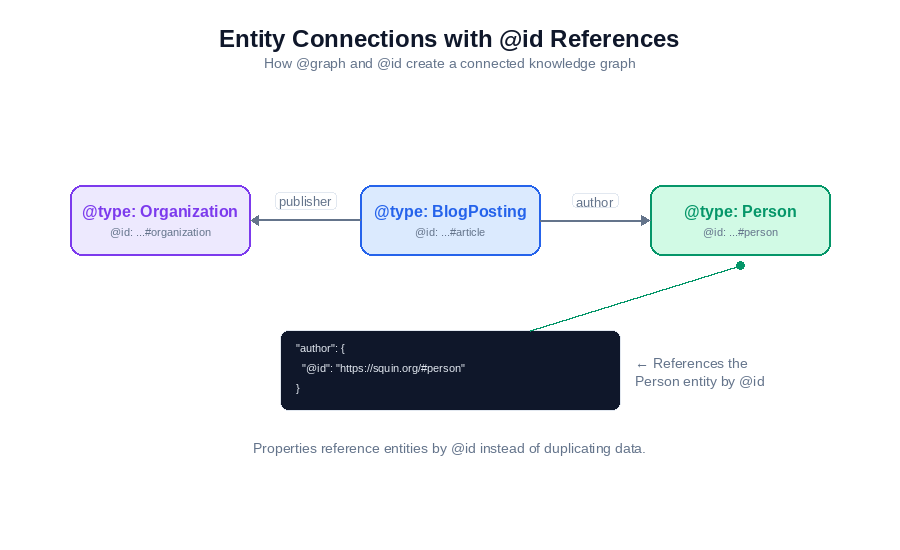
@graph is an array of entities that share the same context:
{
  "@context": "https://schema.org",
  "@graph": [
    {
      "@type": "Organization",
      "@id": "https://squin.org/#organization",
      "name": "squin.org",
      "url": "https://squin.org",
      "logo": {
        "@type": "ImageObject",
        "@id": "https://squin.org/#logo",
        "url": "https://squin.org/logo.png"
      }
    },
    {
      "@type": "Person",
      "@id": "https://squin.org/#person",
      "name": "Jaan Koppel",
      "url": "https://squin.org/about/"
    },
    {
      "@type": "BlogPosting",
      "@id": "https://squin.org/structured-data/schema-org-tutorial/#article",
      "headline": "Schema.org Explained",
      "author": {
        "@id": "https://squin.org/#person"
      },
      "publisher": {
        "@id": "https://squin.org/#organization"
      }
    },
    {
      "@type": "BreadcrumbList",
      "@id": "https://squin.org/structured-data/schema-org-tutorial/#breadcrumb",
      "itemListElement": [
        {
          "@type": "ListItem",
          "position": 1,
          "name": "Home",
          "item": "https://squin.org/"
        },
        {
          "@type": "ListItem",
          "position": 2,
          "name": "Structured Data",
          "item": "https://squin.org/structured-data/"
        }
      ]
    }
  ]
}
Notice how author and publisher in the BlogPosting reference other entities by @id rather than duplicating their properties. This creates a connected graph where entities reference each other.
The @graph pattern is optional. Multiple separate <script type="application/ld+json"> blocks work identically. But @graph keeps related entities together and makes the relationships between them explicit.
For full syntax details on @graph and @id patterns, see our JSON-LD tutorial.
Action Types: Schema.org Isn’t Just for Things
Most Schema.org implementations focus on things: Articles, Products, Organizations, People. But the vocabulary also defines Actions – types that describe what can be done, not just what exists.
Action is a top-level type under Thing. It branches into categories like:
SearchAction– powers sitelinks search boxesBuyAction,OrderAction– enable “Add to Cart” and purchase flowsWatchAction,ListenAction– connect media to playbackSubscribeAction– indicates subscription capabilitiesReserveAction,BookAction– enable booking flows
Actions work with the potentialAction property, which exists on Thing and is therefore available on every type:
{
  "@context": "https://schema.org",
  "@type": "WebSite",
  "@id": "https://squin.org/#website",
  "name": "squin.org",
  "url": "https://squin.org",
  "potentialAction": {
    "@type": "SearchAction",
    "target": {
      "@type": "EntryPoint",
      "urlTemplate": "https://squin.org/?s={search_term_string}"
    },
    "query-input": "required name=search_term_string"
  }
}
This SearchAction tells Google how to construct a search URL for your site, enabling the sitelinks search box in search results.
Actions are how Schema.org moves beyond describing static entities to describing interactive capabilities. Google Assistant, voice search, and smart displays use Action types to understand what users can do with your content, not just what your content is about.
pending.schema.org – When to Use It
Schema.org used to maintain domain-specific extensions as separate subdomains (health-lifesci.schema.org, auto.schema.org). Those types have since been integrated into the core vocabulary. As of 2026, Schema.org has two layers: Core and Pending. No active hosted extensions exist.
pending.schema.org is the staging area for experimental types under community review. They haven’t been approved for the core vocabulary yet. Some graduate to core. Some get rejected. Some sit in pending for years.
The critical rule: Google does not support pending types for rich results.
You can implement pending types. Your JSON-LD will validate. But Google’s Search Gallery lists zero pending types as eligible for enhanced SERP features. If you’re implementing schema for SEO visibility, pending types accomplish nothing.
Use pending types only when you’re building an internal entity graph for non-Google platforms or when you need a type that doesn’t exist in core and you’re willing to wait until it graduates.
The 800-vs-30 Gap: Schema.org’s Full Vocabulary vs. Google’s Supported Types
Schema.org defines over 800 types. Google supports roughly 30 of them for rich results.
That gap confuses people. You implement a type, validate it, deploy it, and see no SERP enhancement. The markup works. Google reads it. Nothing visual changes.
The reason: Schema.org wasn’t built for Google. It was built for the web.
Schema.org serves Google, Bing, Yandex, Apple, Pinterest, social platforms, RSS readers, and AI systems that need structured entity data. Google uses a fraction of the vocabulary for rich result eligibility. Other platforms use different subsets. No single system uses all 800+ types.
Google’s Search Gallery lists the definitive set of types eligible for enhanced SERP features: Article, Product, Recipe, FAQPage, HowTo, Event, VideoObject, LocalBusiness, and about twenty others depending on eligibility rules.
The other 770 types still matter. Google reads them. They help Google understand your content at the entity level. They contribute to how Google maps your page to concepts in the Knowledge Graph. They just don’t trigger review stars, recipe cards, or FAQ dropdowns.
This is intentional. Schema.org’s designers created a general-purpose vocabulary that works across platforms. Google’s rich results are one use case. Not the only use case.
If you’re implementing schema purely for Google SEO, start with the Search Gallery.
But knowing which types Google supports doesn’t help if you’re making implementation mistakes that break the markup entirely.
Common Mistakes When Using Schema.org
Using pending types expecting rich results. Google doesn’t support pending.schema.org types for enhanced SERP features. You can implement them. They’ll validate. Nothing will happen in the search results.
Only checking the specific type’s documentation page. If you implement BlogPosting and only look at schema.org/BlogPosting, you find zero unique properties. The forty-plus properties you need come from SocialMediaPosting, Article, CreativeWork, and Thing. Trace the full inheritance chain.
Confusing vocabulary with syntax. “How do I add Schema.org to my page?” is the wrong question. Schema.org is the vocabulary of types and properties. JSON-LD is the syntax you use to encode that vocabulary in code. You add JSON-LD. You use Schema.org types within it.
Implementing obscure types Google doesn’t support, hoping for SERP features. Schema.org has 800+ types. Google’s Search Gallery lists 30. The gap is intentional. Implementing Cemetery or Mountain won’t trigger rich results no matter how valid your markup is.
Not checking expectedType before assigning property values. If a property expects a Person object and you assign a text string, the Rich Results Test flags it as an error. The expectedType column on every Schema.org type page tells you what structure to use. Match it.
Using string values for Enumerations. Properties like availability expect enumeration URLs (https://schema.org/InStock), not strings ("In Stock"). Check the expectedType and use the correct format. Don’t try to use @type: ItemAvailability – enumerations are URL values, not nested objects.
Using http instead of https in @context. The current standard is "@context": "https://schema.org". Legacy markup sometimes uses http. While most parsers accept both, use the secure protocol to avoid validation warnings and follow current best practices.
Ignoring superseded properties. Older properties show a “Superseded by” note at the bottom of their documentation row. Using vendor instead of seller, or sameAs incorrectly where identifier is more appropriate, means your markup references deprecated vocabulary. Always check for supersedence warnings and review the release notes when updating legacy implementations.
Assuming all Schema.org types work identically across search engines. Bing supports different types than Google. Pinterest supports different types than both. Schema.org is platform-agnostic. Each platform chooses which types to honor for enhanced features.
Forgetting mainEntityOfPage. When your page’s primary content is a specific entity (an Article, a Product, a Recipe), use mainEntityOfPage to indicate that relationship. Without it, Google has to infer which entity is the page’s main subject.
Always validate with Google’s Rich Results Test before deploying. Catch these mistakes in testing, not production.
The FAQ section below answers the most common practitioner questions about Schema.org’s vocabulary system.
Frequently Asked Questions
What’s the difference between Schema.org and JSON-LD?
Schema.org is the vocabulary. JSON-LD is the syntax. Schema.org defines types (Article, Product, Organization) and the properties each type accepts (headline, price, name). JSON-LD is the format you use to encode that vocabulary in machine-readable code. You can use Schema.org with JSON-LD, Microdata, or RDFa. Different syntax, same vocabulary.
Do I need to implement every property on a Schema.org type?
No. Most types have required properties and recommended properties. Required properties are needed for Google’s rich results. Recommended properties improve how your result displays but aren’t mandatory. Schema.org’s type pages don’t distinguish between required and optional. Google’s type-specific documentation does. Check Google’s Search Gallery for the property requirements that actually matter.
Can I use Schema.org types that Google doesn’t support?
Yes, but they won’t trigger rich results. Google can still use them to understand your content at the entity level. If you’re implementing schema purely for SERP visibility, stick to the 30 types in Google’s Search Gallery. If you’re building an entity graph for AI systems or other platforms, the full Schema.org vocabulary is valid.
How do I know which parent type a specific type inherits from?
Every Schema.org type page shows its parent in the breadcrumb navigation at the top. Thing > CreativeWork > Article. That’s the inheritance chain. The page also lists inherited properties in separate sections: “Properties from Article,” “Properties from CreativeWork,” “Properties from Thing.” Those sections show you the full inheritance path.
Should I use types from pending.schema.org?
Not for Google SEO. Pending types are experimental proposals that haven’t been approved for the core vocabulary. Google doesn’t support them for rich results. Use pending types only if you’re building internal entity models or targeting platforms that accept them. Otherwise, stick to core Schema.org types.
What is @graph and when should I use it?
@graph is a JSON-LD structure that lets you define multiple entities in a single script block. Use it when a page describes several connected things – like an Article, its Author, its Publisher, and a BreadcrumbList. Each entity gets its own object in the @graph array, and they can reference each other using @id. It’s optional but keeps related entities together and makes relationships explicit.
What’s the difference between mainEntity and mainEntityOfPage?
Both indicate a primary relationship between a page and its content, but from different directions. Use mainEntityOfPage on the content (like an Article) to point to the page it lives on. Use mainEntity on the page (like a WebPage) to point to its primary content. They’re inverse properties – use whichever fits your markup structure.
Where This Fits
You now understand how Schema.org’s type hierarchy and property inheritance work. You can read a type page, trace properties through parent types, use @graph for multi-entity pages, and identify which types Google actually supports for rich results.
For implementation strategy – which types matter most, how to validate, and where schema fits in AI search – see our schema markup guide. For syntax specifics and how to write the JSON-LD code that uses these types and properties, start with our JSON-LD tutorial.