
JSON-LD is the structured data format Google recommends. You write it as a script block in your HTML. It tells search engines what entities your page describes, who created them, and how they relate to each other.
This tutorial covers the JSON-LD language itself – syntax, nesting, @id cross-referencing, and @graph for multi-entity pages. It does not cover which schema types to implement or when. That strategic layer lives in the schema markup guide. What you get here is the code.
How Does JSON-LD Syntax Work?
JSON-LD is JSON that describes entities and relationships. Not code. Not configuration. It is serialized linked data – a structured description of things on your page that machines can parse without reading your HTML.
You embed it in a <script type="application/ld+json"> tag. Place it in the <head> or anywhere in the <body>. Both work. Google parses structured data from either location. The block is invisible to users and completely decoupled from your page’s markup – you can add, edit, or remove it without touching a single HTML element.
Every JSON-LD block has three structural pieces.
@context declares the vocabulary. For SEO, this is always "https://schema.org". It tells the parser that every type and property in the block comes from the Schema.org vocabulary. You write it once per block.
@type declares what entity you are describing. “Article”, “Organization”, “Product” – these are Schema.org types, each with their own set of valid properties. The full Schema.org type hierarchy defines what is available. Google only supports a subset of those types for rich results, but the @type value always comes from Schema.org.
Properties are key-value pairs that describe the entity. A headline, a datePublished, an author. Values can be simple text strings or nested objects – more on nesting in the next section.
Here is a minimal, valid Article embedded in HTML:
<!DOCTYPE html>
<html lang="en">
<head>
  <title>JSON-LD Tutorial</title>
  <script type="application/ld+json">
  {
    "@context": "https://schema.org",
    "@type": "Article",
    "headline": "JSON-LD Tutorial: The Complete Implementation Guide",
    "author": "Jaan Koppel",
    "datePublished": "2026-03-01T08:00:00+00:00"
  }
  </script>
</head>
<body>
  <!-- your page content -->
</body>
</html>
That block tells Google: this page is an Article, written by Jaan Koppel, published on March 1, 2026. No inference required. Google reads the properties directly. Every code example from here on shows the JSON object only – the <script> wrapper stays the same.
Note that author here is a plain string. That works, but it limits what Google can do with the data. Google cannot connect the string "Jaan Koppel" to a known entity – it is just text. To give Google an actual entity to resolve, you need to nest an object with its own @type and properties. That is where JSON-LD starts doing real work.
How Do You Nest Objects in JSON-LD?
A flat string tells Google a name. A nested object tells Google an entity.
When a property’s value is a thing – a person, an organization, a product offer – you nest an object with its own @type and properties instead of passing a plain text string. This is the difference between giving Google a label and giving it something it can resolve.
Compare these two author declarations:
"author": "Jaan Koppel"

"author": {
  "@type": "Person",
  "name": "Jaan Koppel",
  "url": "https://squin.org/about/"
}
The first is text. Google reads it and moves on. The second is an entity – a Person with a name and a URL. Google can resolve that Person to a known entity in its graph and connect it to other places it appears across the web.
Here is a full Article with both author and publisher as nested objects:
{
  "@context": "https://schema.org",
  "@type": "Article",
  "headline": "JSON-LD Tutorial: The Complete Implementation Guide",
  "datePublished": "2026-03-01T08:00:00+00:00",
  "author": {
    "@type": "Person",
    "name": "Jaan Koppel",
    "url": "https://squin.org/about/"
  },
  "publisher": {
    "@type": "Organization",
    "name": "squin.org",
    "url": "https://squin.org",
    "logo": {
      "@type": "ImageObject",
      "url": "https://squin.org/logo.png"
    }
  }
}
Notice that logo inside publisher is itself a nested object – an ImageObject with its own properties. Nesting goes as deep as you need it to. An Offer nests inside a Product. A PostalAddress nests inside a LocalBusiness. Each nested object follows the same pattern: @type plus properties.
Google’s documentation for each schema type specifies which properties expect a nested entity and which accept plain text. Some properties require nesting – Google’s Article documentation specifies publisher should be an Organization or Person object, not a plain string. Others accept both – author works as text or as a Person object, but the nested version gives Google more to work with. The Product schema guide covers the Offer nesting pattern in full, including multi-variant products with AggregateOffer.
The practical limit is not depth. It is duplication. Once you nest the same Organization in both publisher and an author’s worksFor, you are maintaining identical data in two places. Change one and forget the other, and your schema contradicts itself. That problem has a clean solution: @id.
How Does @id Create Entity Cross-References?
@id assigns a unique identifier to an entity. Once assigned, any other entity in your markup can reference it instead of redeclaring the full object. This is the mechanism that turns isolated schema blocks into a connected entity graph.
The identifier is a URI. Convention follows the W3C JSON-LD Best Practices: use your domain plus a fragment identifier.
"@id": "https://squin.org/#organization"
That URI does not need to resolve to a real page. It is an identifier, not a URL. Its job is to be unique and consistent – the same @id value everywhere you reference that entity.
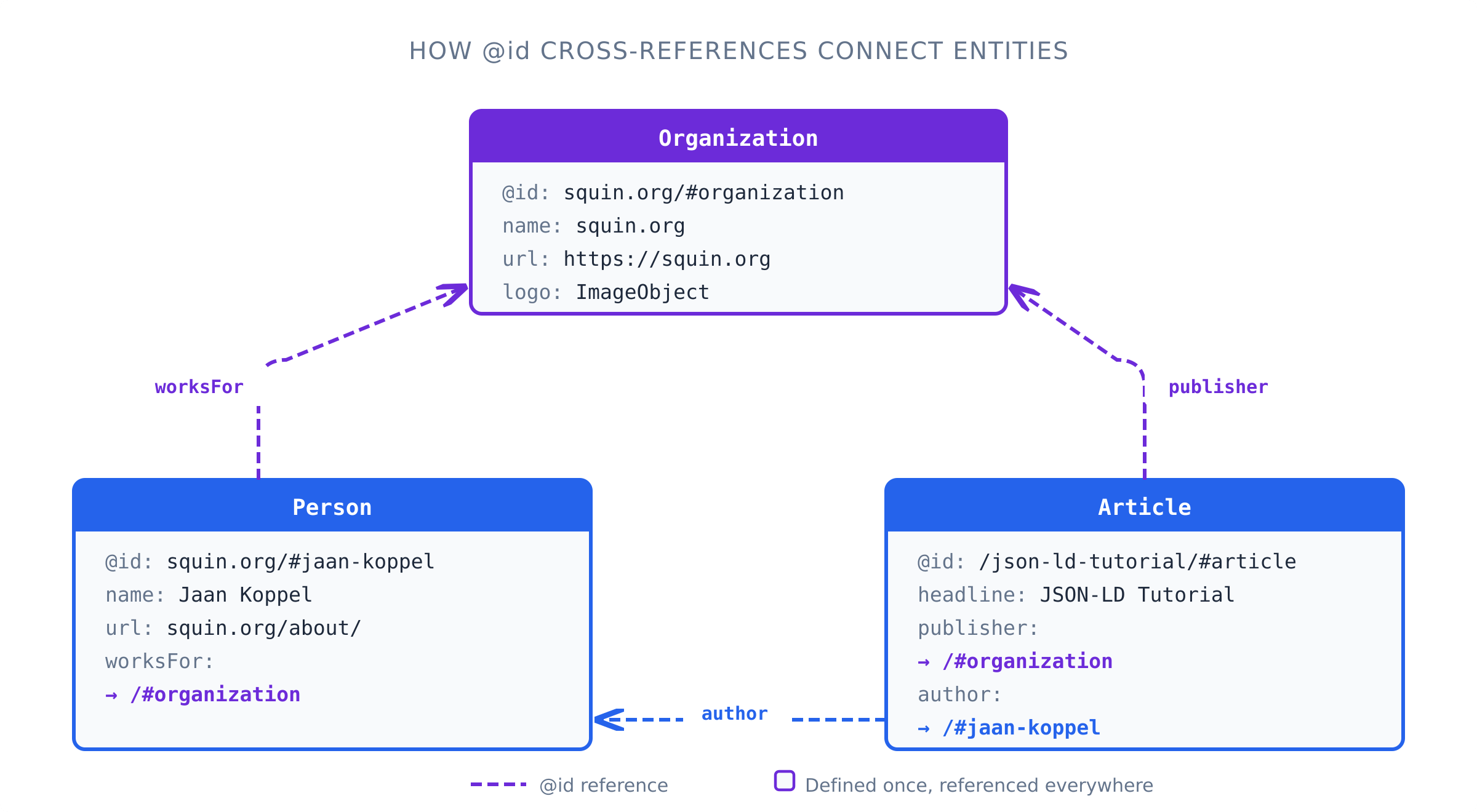
Here is the practical pattern. You define your Organization once with its full properties. Then your Article’s publisher references it by @id instead of repeating the entire block. Your author’s worksFor does the same. Three entities, one shared reference, zero duplication.
These two blocks go in separate <script type="application/ld+json"> tags – or combine them using @graph, which the next section covers:
{
  "@context": "https://schema.org",
  "@type": "Organization",
  "@id": "https://squin.org/#organization",
  "name": "squin.org",
  "url": "https://squin.org",
  "logo": {
    "@type": "ImageObject",
    "url": "https://squin.org/logo.png"
  },
  "sameAs": [
    "https://x.com/squinorg",
    "https://www.linkedin.com/company/squin"
  ]
}

{
  "@context": "https://schema.org",
  "@type": "Article",
  "@id": "https://squin.org/structured-data/json-ld-tutorial/#article",
  "headline": "JSON-LD Tutorial: The Complete Implementation Guide",
  "datePublished": "2026-03-01T08:00:00+00:00",
  "publisher": {
    "@id": "https://squin.org/#organization"
  },
  "author": {
    "@type": "Person",
    "@id": "https://squin.org/#jaan-koppel",
    "name": "Jaan Koppel",
    "url": "https://squin.org/about/",
    "worksFor": {
      "@id": "https://squin.org/#organization"
    }
  }
}
The publisher block contains nothing except {"@id": "https://squin.org/#organization"}. Google resolves that reference to the full Organization defined above. The author’s worksFor does the same thing. You defined the Organization once. You referenced it twice. If your logo URL changes, you update one object, not three.
The URI convention matters. Use your home URL or canonical entity URL as the base for global entities that exist across your entire site – your Organization, your authors, your brand. These are site-wide entities, and their @id should reflect that:
https://squin.org/#organization– your Organizationhttps://squin.org/#jaan-koppel– an author entity
For page-specific entities – this particular Article, this particular FAQ section – use the page’s own URL as the base:
https://squin.org/structured-data/json-ld-tutorial/#articlehttps://squin.org/structured-data/json-ld-tutorial/#faq
The distinction is scope. Your Organization is the same entity on every page. The Article is unique to this URL. The @id pattern should reflect that. When your Organization @id is consistent across every page on your site, Google sees one entity referenced everywhere – not a different Organization on each page.
Without @id, you have two options, and both are worse. You either duplicate the full Organization block everywhere it appears – which means maintaining identical data in multiple places until something drifts. Or you leave the relationship undeclared entirely – you write "publisher": "squin.org" as a string and Google infers the connection instead of receiving it explicitly.
@id eliminates both problems. But a page with several entities and cross-references gets complex fast. Managing all of them inside nested blocks becomes hard to read and harder to maintain. That is the problem @graph solves.
When Should You Use @graph?
Most real pages need more than one schema type. An article page has an Article, an Organization as publisher, a Person as author, and a BreadcrumbList for navigation. The question is how you structure multiple entities in one page’s markup.
@graph vs. Multiple Script Tags
Two approaches work. Google processes both.
Multiple <script> tags means each entity gets its own <script type="application/ld+json"> block with its own @context. Each block is self-contained. You can add or remove one without touching the others. This is simpler when entities are independent – a BreadcrumbList and a VideoObject on the same page that have no relationship to each other.
@graph wraps multiple entities into a single JSON-LD block as an array. All entities share one @context declaration. More importantly, @id cross-references resolve within the same @graph – which means you can define an Organization once and have both the Article’s publisher and the Person’s worksFor point to it in one clean structure.
The decision rule is straightforward. If your entities reference each other, use @graph. It keeps the relationships explicit and the data in one place. If they are genuinely independent, separate <script> tags are fine.
In practice, most pages benefit from @graph. An Article always has a publisher. A publisher is always an Organization. The author usually works for that Organization. These are connected entities. @graph is the structure built for that.
Working @graph Example
Here is a production-ready @graph block for a typical article page. It declares four entities – Article, Organization, Person, and BreadcrumbList – all cross-referenced by @id:
{
  "@context": "https://schema.org",
  "@graph": [
    {
      "@type": "Organization",
      "@id": "https://squin.org/#organization",
      "name": "squin.org",
      "url": "https://squin.org",
      "logo": {
        "@type": "ImageObject",
        "url": "https://squin.org/logo.png"
      },
      "sameAs": [
        "https://x.com/squinorg",
        "https://www.linkedin.com/company/squin"
      ]
    },
    {
      "@type": "Person",
      "@id": "https://squin.org/#jaan-koppel",
      "name": "Jaan Koppel",
      "url": "https://squin.org/about/",
      "worksFor": {
        "@id": "https://squin.org/#organization"
      }
    },
    {
      "@type": "Article",
      "@id": "https://squin.org/structured-data/json-ld-tutorial/#article",
      "headline": "JSON-LD Tutorial: The Complete Implementation Guide",
      "datePublished": "2026-03-01T08:00:00+00:00",
      "dateModified": "2026-03-01T08:00:00+00:00",
      "author": {
        "@id": "https://squin.org/#jaan-koppel"
      },
      "publisher": {
        "@id": "https://squin.org/#organization"
      },
      "mainEntityOfPage": "https://squin.org/structured-data/json-ld-tutorial/"
    },
    {
      "@type": "BreadcrumbList",
      "@id": "https://squin.org/structured-data/json-ld-tutorial/#breadcrumb",
      "itemListElement": [
        {
          "@type": "ListItem",
          "position": 1,
          "name": "Home",
          "item": "https://squin.org/"
        },
        {
          "@type": "ListItem",
          "position": 2,
          "name": "Structured Data",
          "item": "https://squin.org/structured-data/"
        },
        {
          "@type": "ListItem",
          "position": 3,
          "name": "JSON-LD Tutorial"
        }
      ]
    }
  ]
}
Walk through what this graph declares. The Organization is defined once at the top with its full properties. The Person references that Organization through worksFor. The Article references both – the Person as author and the Organization as publisher. The BreadcrumbList stands on its own but lives in the same graph for consistency.
Every entity has a distinct @id. The Organization uses the home URL fragment because it is a site-wide entity. The Article and BreadcrumbList use the page URL fragment because they are specific to this page. The Person uses a home URL fragment because the author entity is the same across all articles.
This block is the template. You adapt it by swapping the @type values and properties for your specific page. A product page replaces the Article with a Product (and adds an Offer). A local business page replaces the Organization with a LocalBusiness. The @graph structure and the @id cross-referencing pattern stay the same. The Organization schema guide covers the full property set for Organization and LocalBusiness types, including the sameAs connections that influence Knowledge Panel eligibility.
The entity graph on your page is now explicit. But there is one more layer you can add to your JSON-LD that most guides skip entirely – properties that connect your entities directly to Google’s Knowledge Graph.
How Do You Connect JSON-LD to the Knowledge Graph?
Everything above describes entities on your page. Three properties connect those entities to Google’s Knowledge Graph – the database where Google stores what it knows about the world.
sameAs tells Google: this entity on my site is the same entity that exists over there. You pass an array of URIs pointing to the entity’s canonical listings across the web – its Wikidata entry, its Wikipedia page, its official social profiles. Google uses these to reconcile your declared entity with a known node in its graph.
about declares the primary entity your page covers. You point it to a Wikidata URI that identifies the concept. An article about JSON-LD points about to the Wikidata entry for JSON-LD. Google does not have to infer what your page is about. You told it.
mentions declares secondary entities that appear in your content but are not the main subject. A page about JSON-LD that discusses Schema.org and the Knowledge Graph can declare both as mentioned entities.
These properties help Google disambiguate your entities – confirming which Knowledge Graph node your content maps to. That strengthens your page’s semantic signal for both traditional ranking and AI Overview citation.
The following snippet is a fragment – in production, these properties go on the Article object inside your @graph array, right alongside headline and author:
{
  "@type": "Article",
  "@id": "https://squin.org/structured-data/json-ld-tutorial/#article",
  "headline": "JSON-LD Tutorial: The Complete Implementation Guide",
  "about": {
    "@type": "Thing",
    "@id": "https://www.wikidata.org/wiki/Q6108942",
    "name": "JSON-LD",
    "sameAs": "https://en.wikipedia.org/wiki/JSON-LD"
  },
  "mentions": [
    {
      "@type": "Thing",
      "@id": "https://www.wikidata.org/wiki/Q3475322",
      "name": "Schema.org",
      "sameAs": "https://en.wikipedia.org/wiki/Schema.org"
    },
    {
      "@type": "Thing",
      "@id": "https://www.wikidata.org/wiki/Q648625",
      "name": "Google Knowledge Graph",
      "sameAs": "https://en.wikipedia.org/wiki/Google_Knowledge_Graph"
    }
  ]
}
Every entity uses a Wikidata URI as its @id. Wikidata URIs are stable, unique, and machine-readable – exactly what a knowledge graph needs to resolve identity without guesswork. The sameAs property inside each entity links to the Wikipedia page as a secondary confirmation.
This is where JSON-LD syntax meets semantic SEO strategy. Your content tells Google what entities you cover through natural language. Your schema confirms which entities you mean with explicit, unambiguous identifiers. The two signals give Google two paths to the same entity: one inferred from your text, one declared in your code.
You now have the full JSON-LD syntax – from basic properties through @graph and Knowledge Graph connections. The next step is making sure what you wrote is actually valid before it goes live.
How Do You Validate JSON-LD Before Publishing?
Two tools. They test different things. You need both.
Google’s Rich Results Test validates your markup against Google’s supported schema types. It renders the page – meaning it executes JavaScript, fires your GTM container, and parses whatever JSON-LD exists in the fully rendered DOM. It tells you which rich result types your page qualifies for and separates issues into errors (the rich result will not display) and warnings (optional properties are missing, but the markup still works). If your goal is SERP visibility, this is the tool that answers the question.
The Schema Markup Validator validates against the full Schema.org specification. It catches invalid property names, wrong value types, and malformed JSON that the Rich Results Test might silently ignore. It does not care whether Google supports a type for rich results. It checks whether your markup is structurally correct against the vocabulary itself.
A critical difference between the two: the Schema Markup Validator does not execute JavaScript when you test by URL. If your JSON-LD is injected via Google Tag Manager or rendered client-side by a framework like React, the Schema Markup Validator will see nothing. It reads the raw HTML source only. The Rich Results Test renders the page like Googlebot does and finds the schema regardless of how it was injected. If you test a GTM-deployed schema block in the Schema Markup Validator by URL and get zero results, that is not a bug. It is the expected behavior.
The workflow: validate syntax in the Schema Markup Validator first. Then confirm Google can parse it in the Rich Results Test. Our Rich Results Test guide covers advanced testing workflows, including edge cases for dynamically rendered markup. For ongoing monitoring after deployment, validating structured data in Search Console tracks what Google’s indexer actually detects across your site over time.
One more note for JavaScript frameworks. If your JSON-LD depends entirely on client-side rendering, always test with the Rich Results Test in URL mode, not code snippet mode. Code snippet mode does not execute JavaScript. URL mode does. The difference determines whether your schema exists to Google or not.
Validation confirms your JSON-LD is correct. But even valid markup breaks in predictable ways. The most common mistakes are syntax-level problems that validation catches – if you know to look.
What Are the Most Common JSON-LD Mistakes?
These are JSON-LD syntax and implementation errors. Every one of them passes a quick glance but breaks something in production.
Missing @context. Without "@context": "https://schema.org", the entire block is meaningless to parsers. Google has no vocabulary to interpret the types and properties. This happens most often when you copy a partial example from documentation or a tutorial that showed the inner object without the wrapper. Always include @context at the top level of every JSON-LD block – or once at the top of your @graph.
Incorrect nesting direction. A Review nests inside a Product. An Offer nests inside a Product. Neither sits alongside it as a sibling. When nesting relationships are wrong, the Rich Results Test may parse each type individually but fail to connect them. Your review stars do not attach to the product. Your pricing floats without context. Check Google’s documentation for each type to confirm which properties expect nested objects.
@id collisions. Two different entities on the same @id value. Google cannot distinguish them. If your Organization and your Article both use "@id": "https://example.com/#main", you have one ambiguous node instead of two distinct entities. Use descriptive fragment identifiers: /#organization, /#article, /#breadcrumb.
Invented properties. AI-generated JSON-LD produces syntactically valid markup with properties that do not exist in Schema.org. "expertise" on a Person. "difficulty" on a HowTo. "targetAudience" on an Article. Google silently ignores properties it does not recognize – no error, no warning, just nothing. Always verify every property against the schema.org type definition before deploying.
Hardcoded values that drift from page content. Your JSON-LD says the price is $49. Your page says $59. The product was updated in the CMS, but the JSON-LD was hardcoded in the template. This violates Google’s structured data guidelines, which require markup to represent content visible on the page. The fix is structural: generate your JSON-LD from the same data source that populates your visible content. If one is dynamic and the other is static, drift is inevitable.
Trailing commas. Valid in JavaScript. Invalid in JSON. A single trailing comma after the last property in an object or array breaks the entire block. Parsers reject the whole thing. Validate your JSON syntax – not just your schema – before every deployment.
Schema for content that does not exist on the page. FAQ answers that live only in the JSON-LD. Product prices declared in markup but not shown to the user. Google’s policy is explicit: structured data must describe content the user can actually see. Markup for invisible content violates spam policies and can trigger a manual action.
Frequently Asked Questions
What is the difference between JSON-LD and Schema.org?
JSON-LD is the format. Schema.org is the vocabulary. JSON-LD defines the syntax – @context, @type, @id, @graph, and how properties are structured. Schema.org defines the types and properties you write inside that syntax – Article, Organization, Product, and every property each type supports. JSON-LD can technically express any vocabulary, but for SEO you use it exclusively with Schema.org.
Where do you put JSON-LD in HTML?
Inside a <script type=”application/ld+json”> tag, placed in either the <head> or <body>. Both work. Google parses structured data from either location. If your CMS or framework makes one easier than the other, use that one. There is no ranking or parsing difference between the two placements.
Can you have multiple JSON-LD blocks on one page?
Yes. You can use multiple separate <script> blocks, each with its own @context, or a single block with @graph containing multiple entities. Google processes both approaches. Use @graph when entities reference each other. Use separate blocks when they are independent.
Does JSON-LD affect page speed?
No measurable impact. JSON-LD sits in a script tag that browsers do not render visually. The payload for a typical article page – even a full @graph with four or five entities – is under 2KB. It adds no render-blocking resources, triggers no layout shifts, and requires no additional network requests.
Where This Fits
This tutorial covers the JSON-LD language – syntax, nesting, @id, @graph, and validation. For the strategic framework behind which schema types to implement and when, see the schema markup guide. For type-specific implementation, start with the Organization schema guide or the FAQPage schema guide.