
Google’s Rich Results Test does one thing: it tells you whether your structured data qualifies for rich results in Google Search. It parses your JSON-LD, renders JavaScript the way Googlebot does, and reports which enhanced SERP features your page is eligible for.
Most guides stop at “paste a URL and look for green checkmarks.” This one covers the rendering pipeline, both testing modes as distinct workflows, the View Tested Page debugging interface, how to interpret ambiguous results, and what the tool doesn’t catch. Where this tool fits in the broader validation workflow – alongside crawl-level auditing and Search Console monitoring – is mapped in our semantic SEO tools guide.
How Does the Rich Results Test Work?
You paste a URL. The tool returns a list of detected schema types and eligible rich results. Between those two steps, a rendering pipeline runs that determines everything about your test results.
The Rich Results Test doesn’t just read your page source. It fetches the URL and renders it through Google’s Web Rendering Service – the same system Googlebot uses during actual crawling. That means it executes JavaScript, loads external resources, builds the complete DOM, and then parses whatever structured data exists in that rendered output. If your JSON-LD is in the static HTML, it finds it. If your JSON-LD gets injected by a script after page load, it finds that too – assuming the script executes successfully in Googlebot’s rendering environment.
The default user agent is Googlebot Smartphone. This matters. Google’s mobile-first indexing means the smartphone crawler is the primary indexer for most sites, so Googlebot Smartphone rendering is the right default for nearly every test you’ll run. You can switch to Desktop mode, but the only case where that changes your results is when your site serves different structured data to different viewports. This happens with responsive implementations that conditionally load schema based on screen size or user agent detection. It’s uncommon.
The tool validates your structured data against Google’s supported types for rich results – roughly 30 types listed in the Search Gallery. Not against the full Schema.org vocabulary of 800+ types. That distinction gets its own section later in this guide.
The same URL can produce different test results at different times. Server response variation, CDN cache states, and resource availability all affect what the rendered DOM contains when the tool parses it. If a test comes back empty and you’re sure the markup exists, run it again.
That pipeline also determines which of the two testing modes you should use – and they test fundamentally different things.
How Do You Test a Live URL vs. a Code Snippet?
Two input modes. Different purposes. The tool’s interface presents them as tabs at the top of the page, and most guides treat them as interchangeable. They aren’t.
URL Mode – Testing What Googlebot Sees
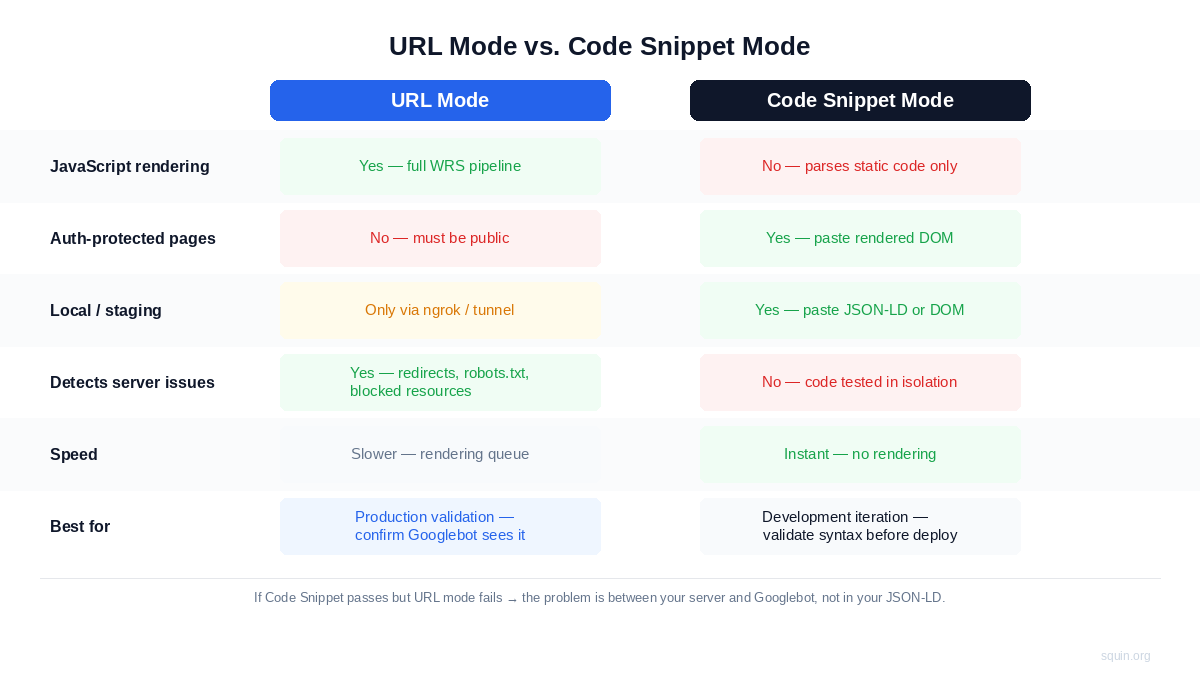
Paste a live, publicly accessible URL. The tool fetches the page, renders JavaScript through Google’s Web Rendering Service, follows redirects, and parses structured data from the fully rendered DOM. This is production validation – confirming that Googlebot can access and parse your structured data in the real deployment context.
The URL must be publicly accessible. Pages behind authentication, login walls, or staging environments blocked by robots.txt return nothing useful. Localhost doesn’t work either. If you need to test a local or staging environment in URL mode, tools like ngrok or Cloudflare Tunnels can temporarily expose your local server to a public URL that the Rich Results Test can fetch.
What URL mode catches that Code Snippet mode can’t: server-side redirects that break structured data delivery, robots.txt rules that block Googlebot from critical resources, JavaScript execution failures in Googlebot’s rendering environment, and conditional logic that serves different markup based on user agent. If your structured data works in Code Snippet mode but fails in URL mode, the problem is between your server and Googlebot – not in your JSON-LD.
Code Snippet Mode – Three Workflows
Paste raw JSON-LD into the code editor. The tool parses it in isolation. No page fetching, no rendering, no JavaScript execution. Rich results code snippet testing is faster than URL mode because there’s no rendering pipeline – the tool validates your code directly against Google’s supported types.
That makes Code Snippet mode useful for three distinct workflows:
Pre-deployment syntax validation. Paste your JSON-LD block before it touches production. The tool catches missing required properties, malformed JSON, and invalid @type values immediately. This is where you catch the trailing comma that breaks parsing or the headline property you forgot on your Article type. Faster than deploying, waiting for the page to go live, and testing via URL.
Iterating on complex structures. If you’re building nested @graph architectures with @id cross-references across multiple entity types, Code Snippet mode lets you test each iteration without redeploying. Paste, test, revise, paste again. Our JSON-LD tutorial covers @graph architecture and @id referencing patterns if you need the syntax fundamentals.
Rendered DOM testing for JavaScript-rendered schema. If your structured data is injected client-side – by a React component, a Next.js page, or a GTM tag – you can still test it in Code Snippet mode without a publicly accessible URL. The workflow: render the page in your local browser, open Chrome DevTools (Elements tab), right-click the <html> element, select “Copy > Copy outerHTML,” and paste the entire rendered DOM into Code Snippet mode. The tool parses the structured data from that HTML block just as it would from a fetched page.
One important limitation. This tests what your browser rendered, not what Googlebot renders. Your browser’s JavaScript engine, cookie state, resource access, and authentication context all differ from Googlebot’s rendering environment. A React app that renders perfectly in Chrome might fail to hydrate in Googlebot’s Web Rendering Service if it depends on a blocked resource or a client-side API call that times out. Use the rendered DOM method to validate that your framework produces correct JSON-LD. Use URL mode to validate that Googlebot specifically can see it.
Both modes report the same output: detected types, eligible rich results, errors, and warnings. How you interpret those results – and which ones actually matter – is where most practitioners get stuck.
How Do You Test JavaScript-Rendered Structured Data?
If your structured data is injected by Google Tag Manager, rendered by a React component, or built client-side by Next.js or Vue, the JSON-LD doesn’t exist in your page’s initial HTML response. It appears only after JavaScript executes and the DOM fully renders. That changes the testing workflow entirely.
Two paths exist to test javascript structured data, and they test different things.
URL mode tests what Googlebot’s rendering environment produces. The tool fetches your page, runs it through the Web Rendering Service, and parses structured data from the result. This is the authoritative test. If URL mode finds your schema, Googlebot can find it during actual crawling.
Rendered DOM via Code Snippet mode tests what your browser’s rendering environment produces. You render the page locally, copy the outerHTML from DevTools, and paste it into Code Snippet mode. This confirms your framework outputs correct JSON-LD. It doesn’t confirm Googlebot can replicate that rendering. The JavaScript engines, resource access, and authentication contexts differ between your browser and Googlebot’s environment.
Start with URL mode. If it detects your structured data, you’re done. The problems start when it doesn’t.
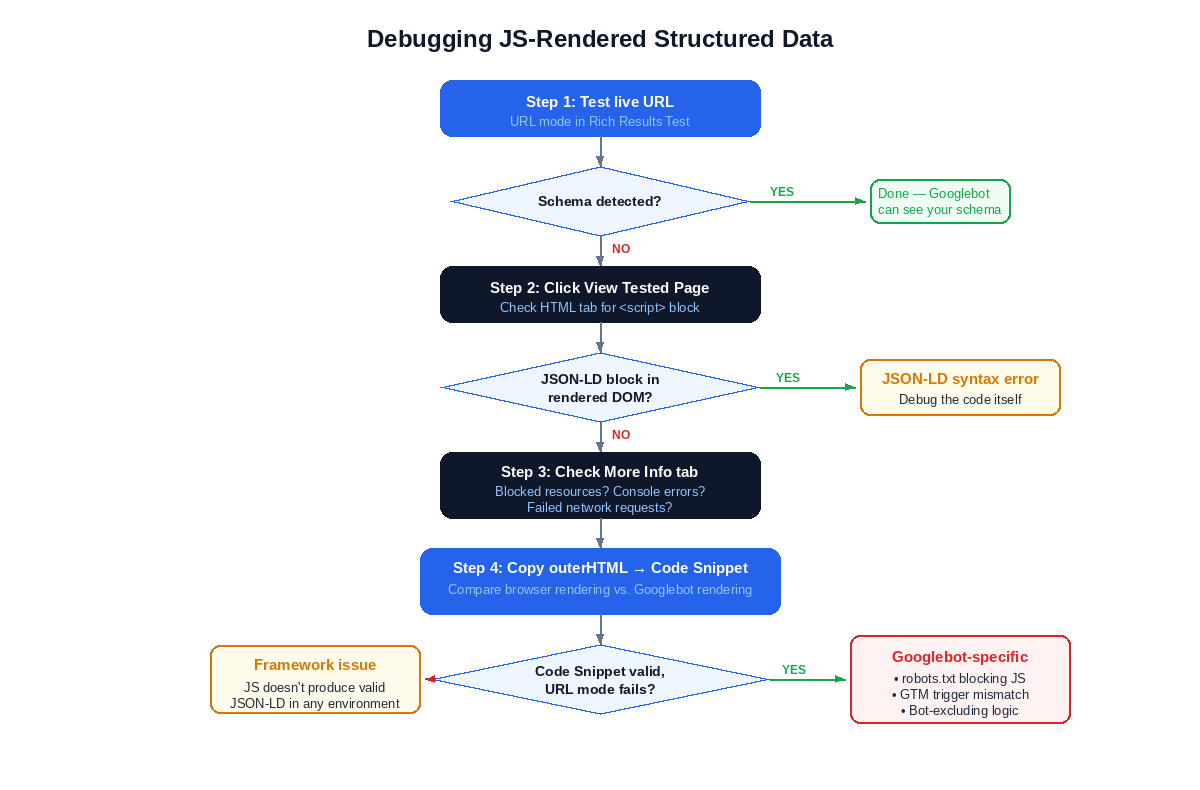
The View Tested Page button is your primary debugging interface. After running a URL mode test, click it. Three tabs tell you exactly where the failure happened:
The HTML tab shows the fully rendered DOM as Googlebot saw it. Search for your <script type="application/ld+json"> block in this output. If the block is missing, your JavaScript injection failed in Googlebot’s rendering environment. The problem isn’t your JSON-LD syntax. It’s your JS execution. Maybe the script didn’t fire. Maybe it fired but the output didn’t make it into the DOM before the renderer captured it. Either way, the HTML tab tells you whether the markup is there or not. Binary answer.
The Screenshot tab shows a visual render of the page as Googlebot saw it. This catches a different class of failure: blank renders, cookie consent interstitials covering the page, authentication walls, or layout errors that prevent Googlebot from reaching your content at all. If the screenshot shows a blank page or an error state, Googlebot never got far enough to encounter your structured data.
The More Info tab surfaces JavaScript console errors and page resource loading details. This is where you find the specific cause. Googlebot blocked from fetching the .js bundle that injects your schema – by robots.txt, by server-side user agent filtering, or by CDN restrictions. A console error from a failed API call that your schema injection depends on. A timeout on a third-party script that GTM waits for before firing its tags. The More Info tab gives you the evidence.
The debugging workflow, step by step:
- Test the live URL in URL mode.
- If no schema is detected, click View Tested Page.
- Check the HTML tab. Is the
<script type="application/ld+json">block present in the rendered DOM? - If it’s present but the tool still reports errors, the issue is in your JSON-LD syntax – debug the code itself.
- If the block is missing, check the More Info tab. Look for blocked resources, console errors, or failed network requests for the JavaScript files responsible for injecting your schema.
- If nothing obvious appears in More Info, compare against the rendered DOM method. Copy your browser’s outerHTML into Code Snippet mode. If Code Snippet mode shows valid schema but URL mode doesn’t, the problem is specific to Googlebot’s rendering environment. Common causes: robots.txt blocking the JS bundle, GTM trigger conditions that don’t match Googlebot’s user agent, conditional rendering logic that explicitly excludes bots, or third-party scripts that timeout in Googlebot’s rendering queue.
Google’s JavaScript SEO documentation explains the two-wave indexing process – pages are first crawled for raw HTML, then queued for rendering when resources are available. That queue introduces a delay. Your structured data isn’t invisible to Google permanently. It’s invisible until the page gets rendered. The Rich Results Test skips the queue and renders immediately, so it shows you the end state. But if the rendering itself fails, the Rich Results Test shows you exactly why.
JS rendering issues are one category of failure. Reading and interpreting the results the tool gives you is the other.
How Do You Read the Results?
The tool returns a results page with detected schema types, eligible rich results, errors, and warnings. After each test, the tool generates a shareable URL for the results page. Copy it to send to your team – developers, SEOs, whoever needs to see the specific errors on a specific page without re-running the test themselves.
Clicking a specific error or warning in the results panel automatically highlights the exact line of code in the source editor on the left – the fastest way to trace issues in large, rendered DOMs.
Detected Types and Eligible Rich Results
The results page lists every schema type the tool found in your markup. Click any detected type to expand it and inspect the individual properties the tool parsed. Clicking a specific error or warning in the results panel highlights the corresponding line in the source code view – the fastest way to locate the problem in a large rendered DOM. This is where you confirm that your headline, author, datePublished, and other properties actually contain the values you intended – not empty strings, not placeholder text left over from a template.
Below the detected types, the tool shows which rich result features your page qualifies for. A rich results preview displays a visual mock-up of how the enhanced result might appear in search. It confirms your data populates correctly – your product price shows up where pricing should be, your FAQ questions display in the right order.
But the preview is an approximation. Not a promise. Google decides at query time whether to display a rich result, and the final rendering can differ from what the tool shows. Don’t treat the preview as a pixel-perfect prediction.
One result that confuses practitioners: “No rich results detected.” That doesn’t always mean your schema is broken. It could mean your schema type is valid Schema.org but isn’t one of the roughly 30 types Google supports for rich results. A SoftwareApplication type or a MedicalCondition type passes Schema.org validation but won’t trigger any rich result eligibility in this tool. The Search Gallery is the definitive list of what Google supports. If your type isn’t there, the tool has nothing to report. That’s not an error. It’s a scope limitation.
Errors vs. Warnings – A Triage Framework
The tool separates issues into two categories. The distinction matters.
Errors block rich result eligibility entirely. If a detected type has errors, that type won’t qualify for any enhanced SERP feature until you fix them. Common errors: a required property is missing (like Article without headline), an @type value Google doesn’t recognize, or the JSON itself is malformed and couldn’t be parsed. Errors are non-negotiable. Fix all of them.
Warnings mean recommended properties are absent. Your markup still qualifies for rich results. The feature still works. But the display might be less detailed than it could be. A Product type without aggregateRating triggers a warning – the product rich result still appears, just without star ratings. A Recipe without video triggers a warning – the recipe card displays, just without a video thumbnail.
The triage framework:
- Fix every error. No exceptions. Errors mean the rich result won’t appear at all.
- Review each warning against this question: does adding the missing property improve what the user sees in the SERP? If your
Articleis missingimageand adding a featured image would make the result more visually prominent – add it. If the warning is for a property that doesn’t apply to your content, ignore it. - Don’t chase zero warnings. Some warnings flag properties that are structurally irrelevant to your page. A
dateModifiedwarning on a page that’s never been modified isn’t a problem you need to solve. Areviewwarning on a product page that genuinely has no reviews isn’t a data quality issue – it’s accurate.
Google’s structured data documentation lists required and recommended properties for every supported type. When in doubt about whether a warning matters, check the type-specific page. Required means error if missing. Recommended means warning if missing. Optional means the tool won’t mention it at all.
Reading results correctly keeps you focused on real problems. The next section covers the five errors that show up most often – and the exact code fixes for each.
What Are the Most Common Errors and How Do You Fix Them?
Five errors account for the majority of failed tests. Each one below includes the broken code and the fix.
Missing required properties. The most common error across every schema type. The tool reports it clearly: “Missing field ‘headline'” or “Missing field ‘name’.” Required properties vary by type. An Article without headline fails. A Product without name fails.
Broken:
{
  "@context": "https://schema.org",
  "@type": "Article",
  "author": {
    "@type": "Person",
    "name": "Jaan Koppel"
  },
  "datePublished": "2026-03-15"
}
The tool reports an error: missing headline. Fixed:
{
  "@context": "https://schema.org",
  "@type": "Article",
  "headline": "How to Use Google's Rich Results Test",
  "author": {
    "@type": "Person",
    "name": "Jaan Koppel"
  },
  "datePublished": "2026-03-15"
}
Check the type-specific documentation in the Search Gallery before you implement. Required properties differ between Article, Product, FAQPage, and every other supported type.
Invalid or misspelled @type. Schema.org types are case-sensitive. The tool stops processing the block entirely when it encounters an unrecognized type.
{ "@context": "https://schema.org", "@type": "articles" }
That fails. The correct value is Article – capitalized, singular, exactly as defined in the schema.org type hierarchy. Same issue with "product" instead of "Product", or "Localbusiness" instead of "LocalBusiness". One wrong character and the entire block is ignored.
Nesting errors. The tool detects the individual types but doesn’t connect them. Your star ratings float without attaching to the product.
Broken – AggregateRating as a standalone sibling in a JSON array:
[
  {
    "@context": "https://schema.org",
    "@type": "Product",
    "name": "Rank Math SEO Plugin"
  },
  {
    "@context": "https://schema.org",
    "@type": "AggregateRating",
    "ratingValue": "4.9",
    "reviewCount": "5200"
  }
]
The tool parses both types individually. But the rating isn’t attached to the product – Google can’t associate them. Fixed by nesting:
{
  "@context": "https://schema.org",
  "@type": "Product",
  "name": "Rank Math SEO Plugin",
  "aggregateRating": {
    "@type": "AggregateRating",
    "ratingValue": "4.9",
    "reviewCount": "5200"
  }
}
Malformed JSON. The tool can’t even parse the block. You get a generic parsing error before any type validation runs.
Common causes: trailing commas after the last property in an object (valid in JavaScript, invalid in JSON), single quotes instead of double quotes, unquoted property names, or missing closing braces. These errors are invisible when you’re staring at a block of JSON-LD in your code editor.
{
  "@context": "https://schema.org",
  "@type": "Article",
  "headline": "Test Article",
  "author": "Jaan Koppel",
}
That trailing comma after "Jaan Koppel" breaks parsing. The fix is obvious once you see it. The prevention is better: run your JSON-LD through a JSON linter – JSONLint or a VS Code JSON validation extension – before pasting it into the Rich Results Test.
Restricted types that pass validation but don’t display. This is the error the tool can’t tell you about. Google restricted FAQPage rich results in August 2023 to well-known, authoritative government and health websites. The Rich Results Test may still show your FAQPage markup as “eligible.” Technically correct. But Google won’t display the rich result for a standard site. The tool validates syntax and type support. It doesn’t evaluate your site’s eligibility for restricted features. Check the Search Gallery documentation for current restrictions before investing time in a type that won’t produce visible results.
These five errors cover the majority of failed tests. Fix them and your markup passes validation. But passing validation isn’t the same as having reliable structured data – the tool has specific blind spots that no amount of green checkmarks can cover.
What Does the Rich Results Test Miss?
A clean test result doesn’t mean your structured data is correct. It means your JSON-LD is syntactically valid and uses a type Google supports. The tool has specific blind spots that create false confidence if you don’t know about them.
Content-markup mismatches. The tool doesn’t compare your JSON-LD to your visible page content. A Product schema declaring a price of $49.99 passes validation even if the page actually shows $59.99. A datePublished of 2026-01-15 passes even if the article was published in 2024. These mismatches violate Google’s structured data policies – your markup must represent content that’s actually visible on the page. The Rich Results Test can’t enforce that rule. Only you can, by checking the parsed property values against what the page displays.
Schema drift makes this worse over time. Your CMS updates a product price. Your JSON-LD stays hardcoded at the old price. The markup keeps passing validation for months while the mismatch silently violates Google’s guidelines. If your structured data isn’t generated dynamically from the same data source as your visible content, drift is inevitable.
Hallucinated properties from AI-generated schema. LLMs produce JSON-LD that looks plausible but uses invented properties. A Person type with an expertise property. An Article with a difficulty field. Neither exists in the schema.org vocabulary. The Rich Results Test doesn’t flag them as errors. It silently ignores any property it doesn’t recognize. The markup appears to pass cleanly, but the invented properties do nothing – Google’s parser discards them.
The fix is manual. Every property in your JSON-LD needs to exist in the schema.org definition for that type. No shortcut. If you used an LLM to generate the markup, verify every single property against the schema.org type page for the @type you’re using.
Schema.org types outside Google’s supported set. The tool only validates against the roughly 30 types in Google’s Search Gallery. A perfectly valid MedicalCondition, SoftwareApplication, or Course type won’t generate any rich result eligibility report. The tool doesn’t tell you the type is unsupported. It just shows nothing. No error, no warning, no feedback at all. If you’re testing a type and get an empty result, check the Search Gallery first. Our Schema.org type hierarchy guide maps which types Google supports and which it doesn’t.
The gap between eligibility and display. The tool says “eligible for rich results.” You check the SERP. Nothing. Rich results eligibility confirms your markup qualifies. Google decides whether to actually display the feature based on several factors: whether the page is indexed, whether the query triggers that rich result type, whether the type is restricted to specific site categories (FAQPage since August 2023), and whether Google’s algorithms simply choose not to show it for that result. Eligibility is necessary. It’s not sufficient.
Use a complementary tool. The Schema Markup Validator fills the gap the Rich Results Test leaves. It validates your markup against the full Schema.org specification – all 800+ types, all properties – rather than just Google’s supported subset. The Rich Results Test tells you whether Google can use your markup for rich results. The Schema Markup Validator tells you whether your markup is structurally correct against the vocabulary itself. Use both. They catch different problems.
The Rich Results Test validates single pages at a single point in time. Ongoing structured data health – tracking errors across your entire site as templates change and content updates – requires a different layer entirely.
How Does the Rich Results Test Connect to Search Console?
The Rich Results Test validates one page at one point in time. Google Search Console tracks structured data health across your entire site, continuously.
Different tools, different jobs. The Rich Results Test is for development and pre-publish validation. You test a page before it goes live, fix errors, confirm eligibility, deploy. GSC takes over from there. Its Enhancement reports monitor every structured data type Google detects across your property – Article, Product, FAQ, Breadcrumb – and flag when something breaks.
GSC uses the same three status categories: errors, valid with warnings, and valid. But it reports at site scale. A template change that breaks Product schema across 200 pages shows up in GSC as a spike in errors for that type. The Rich Results Test can’t surface that. You’d have to test all 200 URLs individually.
The practical workflow: use the Rich Results Test during development to validate markup before deployment. After publishing, monitor GSC’s Enhancement reports for regressions. When GSC flags a new error, take the affected URL back to the Rich Results Test for diagnosis. The Rich Results Test gives you the detail. GSC gives you the coverage.
One gap to know about. GSC reports reflect the last time Google crawled each page. If you fix an error today, the report may not update for days or weeks until Googlebot recrawls those pages. You can click “Validate Fix” in the Enhancement report after applying fixes to request revalidation and speed up the process.
For the full monitoring workflow – including which Enhancement reports to track and how to interpret “valid with warnings” at scale – see our guide to [validating structured data in Google Search Console] (coming soon).
Frequently Asked Questions
What’s the difference between the Rich Results Test and the Schema Markup Validator?
The Rich Results Test validates against Google’s supported types for rich results. The Schema Markup Validator validates against the full Schema.org vocabulary. Use the Rich Results Test to check Google-specific eligibility. Use the Schema Markup Validator to check that your JSON-LD is structurally correct against the schema.org specification. They test different things. You need both.
Can I test pages behind a login or on a staging server?
No. URL mode requires a publicly accessible page. The tool fetches the URL the same way Googlebot would – if Googlebot can’t access it, the tool can’t either. For pre-production markup, use Code Snippet mode: paste the raw JSON-LD to validate syntax, or paste the rendered DOM from your local browser to validate JS-rendered markup. For full URL mode testing on a local environment, tools like ngrok or Cloudflare Tunnels can expose your local server to a public URL temporarily.
Why does my schema pass the Rich Results Test but no rich result appears in search?
Passing validation confirms eligibility, not display. Google decides whether to show a rich result based on whether the page is indexed, whether the query triggers that feature type, whether the schema type is currently supported for your site category, and whether Google’s algorithms choose to display it. Valid markup is necessary but not sufficient.
Is there a Rich Results Test API?
No. There’s no standalone public API for the Rich Results Test. Google deprecated the old Structured Data Testing Tool API and never replaced it with a Rich Results Test equivalent. The closest programmatic option is the URL Inspection API within the Google Search Console API – it returns rich result status, but only for pages already indexed within a verified GSC property. You can’t use it to test raw code snippets, unindexed URLs, or staging environments. For bulk validation, crawl-level tools like Screaming Frog are the practical alternative.
Does the Rich Results Test work for Microdata and RDFa, or only JSON-LD?
It validates all three formats. But Google recommends JSON-LD, and every implementation guide on this site uses JSON-LD exclusively. If you’re testing Microdata or RDFa and considering a migration, the JSON-LD tutorial covers the syntax and conversion process.
The Rich Results Test handles one stage of the validation workflow: pre-publish, single-page testing. For site-wide schema auditing at crawl scale, the Screaming Frog structured data guide covers the full crawl-level workflow. For post-publish monitoring, our guide to validating structured data in Google Search Console covers Enhancement reports and ongoing schema health tracking.