
Most structured data validation guides stop at “paste your code into the Rich Results Test.” That covers pre-deployment. Post-deployment – where your markup meets real crawling, rendering, and indexing – is where structured data breaks without warning. You might get an email if errors spike suddenly. But slow degradation – a template change that quietly breaks markup on 200 pages – won’t trigger an alert. Your rich results just disappear.
This guide covers what happens after deployment: monitoring, diagnosing, and fixing structured data issues inside Google Search Console. If you’re still building your markup, start with our structured data implementation guide.
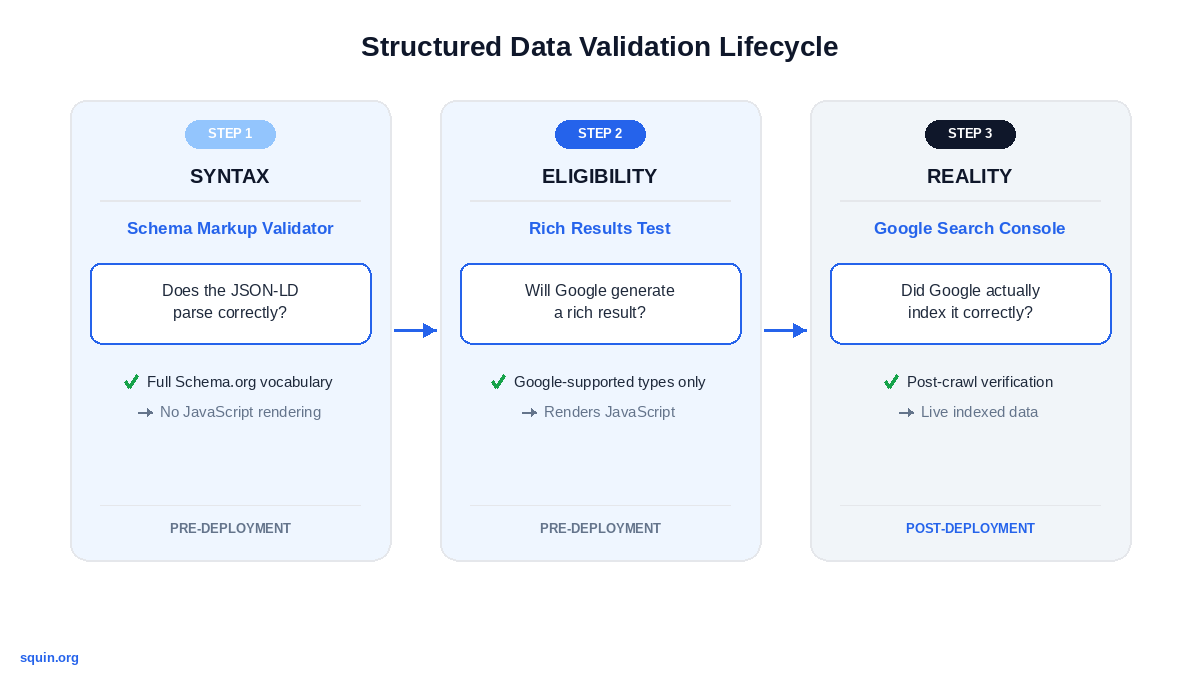
Before GSC monitoring makes sense, your baseline syntax needs to pass two pre-deployment checks:
- Schema Markup Validator – confirms your JSON-LD parses correctly against the full Schema.org vocabulary. It doesn’t render JavaScript, so client-side injected markup won’t appear.
- Rich Results Test – confirms Google can generate a rich result from your markup. This one renders JavaScript and checks only Google-supported types.
For the full testing workflow, see our Rich Results Test guide.
Once markup passes both, GSC becomes your ongoing monitoring layer. Everything below is post-deployment.
What Do GSC’s Structured Data Reports Actually Tell You?
GSC gives you three reporting surfaces for structured data. Each answers a different question, and mixing them up wastes time.
Enhancement reports show what Google found across your entire site. The unparsable structured data report flags markup Google couldn’t read at all. The URL Inspection tool shows what Google indexed on a single specific page.
They overlap in places, but they aren’t interchangeable. Knowing which report to open first depends on whether you’re investigating a site-wide trend or debugging a single URL.
Enhancement Reports and Item Counts
Open GSC, then scroll down the left sidebar to the Enhancements section. Each structured data type gets its own report. GSC enhancement reports create a separate report for every type Google detects on your site – FAQ, HowTo, Product, Recipe, and others. Each report breaks down into three categories: valid items, items with warnings, and items with errors.
Item counts represent individual structured data items, not pages. A single page with three FAQ questions shows as three items in the report. A product page with five Offer variants counts as five items. The numbers will always be higher than your page count.
Trend lines matter more than absolute numbers. A sudden drop in valid items almost always traces back to a template change, a plugin update, or a crawl access issue. Not a manual action. If your Product valid items dropped from 4,000 to 200 on a Tuesday, check what deployed that week.
The merchant listings report in GSC deserves specific attention. It validates Product markup against Google’s merchant listing requirements, which demand more properties than the standard Product type on schema.org. You’ll see errors for missing availability and warnings for missing priceValidUntil or shippingDetails that won’t appear in a standard Enhancement report. Make sure your markup includes all required Offer properties – see our Product schema markup guide.
Unparsable Structured Data Report
This report surfaces markup Google couldn’t parse at all. Not “missing a required field” – markup so broken the parser couldn’t identify what type it was supposed to be.
Common triggers:
- Trailing commas after the last property in a JSON-LD object. JavaScript tolerates this. JSON doesn’t.
- Unclosed brackets or braces – often caused by a PHP template that conditionally outputs properties but mishandles the closing
}. - HTML comments inside
<script type="application/ld+json">blocks. The JSON parser doesn’t know what<!-- -->means. - A malformed
@contextvalue, like a typo inhttps://schema.orgor combining it with additional contexts in an array that Google’s parser doesn’t recognize.
The report lists affected URLs with the date Google last tried to parse them. Click into any URL to see which specific block failed. After you fix the underlying syntax issue, you’ll use the “Validate Fix” workflow covered in a later section to trigger a recrawl.
Google documents this report in its unparsable structured data documentation.
URL Inspection Tool for Per-Page Validation
The URL Inspection tool shows structured data as Googlebot actually indexed it – after rendering, after canonical resolution, after any server-side processing. This is ground truth.
How it differs from the Rich Results Test: the RRT tests what a page could produce from a fresh fetch. URL Inspection shows what Google did index. If those two disagree, something changed between the test and the actual crawl – caching, A/B testing, server-side rendering differences.
This matters most for JavaScript-rendered markup. Click “View Tested Page,” then check the rendered HTML for your <script type="application/ld+json"> blocks. If your JSON-LD is injected by React, Next.js, or Vue, this is the only place in GSC where you can confirm Googlebot saw it. For implementation patterns, see JSON-LD in React and Next.js (coming soon).
Once you know where to look, the next step is fixing what these reports flag.
How Do You Read and Act on Enhancement Report Errors?
Enhancement reports flag errors by category. Each category maps to a specific problem in your JSON-LD, and each problem has a concrete fix. The error names GSC uses aren’t always obvious, so what follows is a direct translation from GSC’s language to your codebase.
Missing required properties is the most common error. GSC tells you which property is missing, but the fix depends on your schema type’s full requirements. A Product without an Offer passes syntax validation but fails GSC’s enhancement checks because Google requires pricing data to generate Product rich results.
The broken version:
{
  "@context": "https://schema.org",
  "@type": "Product",
  "name": "Wireless SEO Audit Toolkit",
  "description": "Portable structured data testing kit"
}
The fix – add the required offers property with its own required fields:
{
  "@context": "https://schema.org",
  "@type": "Product",
  "name": "Wireless SEO Audit Toolkit",
  "description": "Portable structured data testing kit",
  "offers": {
    "@type": "Offer",
    "price": 49.99,
    "priceCurrency": "USD",
    "availability": "https://schema.org/InStock",
    "url": "https://example.com/product/seo-toolkit"
  }
}
Invalid property values are subtler. Your markup parses fine, but a value uses the wrong format. GSC surfaces this as a warning or error depending on the property. The most frequent offender: price as a formatted string instead of a number.
"price": "$49.99"
Google expects a raw number or numeric string – no currency symbols. Currency goes in priceCurrency.
"price": 49.99,
"priceCurrency": "USD"
Same pattern applies to dates. GSC rejects "March 15, 2026" but accepts "2026-03-15" in ISO 8601 format.
Wrong @type for the intended rich result. Schema.org defines hundreds of types. Google supports just over 30 for rich results. If you mark a page as MusicEvent and don’t see it in your enhancement reports at all, that’s not an error – Google simply doesn’t generate rich results for that type. The Schema Markup Validator will call it valid. GSC won’t acknowledge it exists.
Duplicate structured data blocks require a different diagnostic approach. View your page source and search for <script type="application/ld+json">. If you find two or more blocks describing the same entity – one from Rank Math, one from your theme, one you added manually – GSC may surface this as conflicting values for the same @type, such as contradictory name or price properties. The fix: disable schema output from every source except one.
For the correct syntax patterns across all these cases, see our JSON-LD implementation tutorial.
Once you’ve identified and fixed an error, the next step is telling Google to re-check the affected pages – and GSC has a specific workflow for that.
How Do You Use the Validate Fix Workflow in GSC?
You’ve found the error. You’ve fixed the markup. Now you need Google to re-check those pages. GSC has a specific process for this, and skipping steps means waiting longer than necessary.
Step 1: Identify the error in the Enhancement or Unparsable report.
Open the relevant report in GSC – whichever one flagged the issue. Click into the specific error category (e.g., “Missing field ‘name'” or “Unparsable structured data”). You’ll see a list of affected URLs and the total count. Note both. The count matters because “Validate Fix” re-checks a sample from this entire group, not just the one URL you fixed.
Step 2: Inspect the affected URL with the URL Inspection tool.
Enter one of the flagged URLs in the Inspection tool. Click “View Tested Page” → “More Info” and check the rendered HTML. Click the HTML tab and use CTRL+F to search for schema.org or your @type value – the rendered source is often minified and thousands of lines deep. Find the <script type="application/ld+json"> block causing the issue. For JavaScript-rendered pages, the rendered HTML is the only view that shows what Googlebot actually saw. If the JSON-LD block is missing from the rendered output, your framework isn’t injecting it at render time – the fix is in your build pipeline, not your schema.
Step 3: Fix the markup in your CMS or codebase.
Resolve the specific issue. Missing property? Add it. Trailing comma? Remove it. Plugin conflict producing duplicate blocks? Disable schema output from one source. If the error comes from a shared template, fixing the template once resolves every affected URL. The fix depends entirely on what Step 2 revealed.
Step 4: Test the corrected live URL.
Back in URL Inspection, click “Test Live URL.” This fetches the page fresh – not from Google’s index. Check the structured data section. It should show your schema type with a green “valid” status and zero errors. If errors persist, your fix didn’t deploy correctly. Don’t move to Step 5 until this passes.
Step 5: Click “Validate Fix” to trigger Google’s recrawl.
Return to the Enhancement or Unparsable report. Click “Validate Fix” on the error category you corrected. When you click Validate Fix, structured data Google previously failed to parse enters a priority recrawl queue. The report status progresses through three stages: “Started,” then “Looking good” (Google is re-checking and hasn’t found failures yet), then “Passed” or “Failed.”
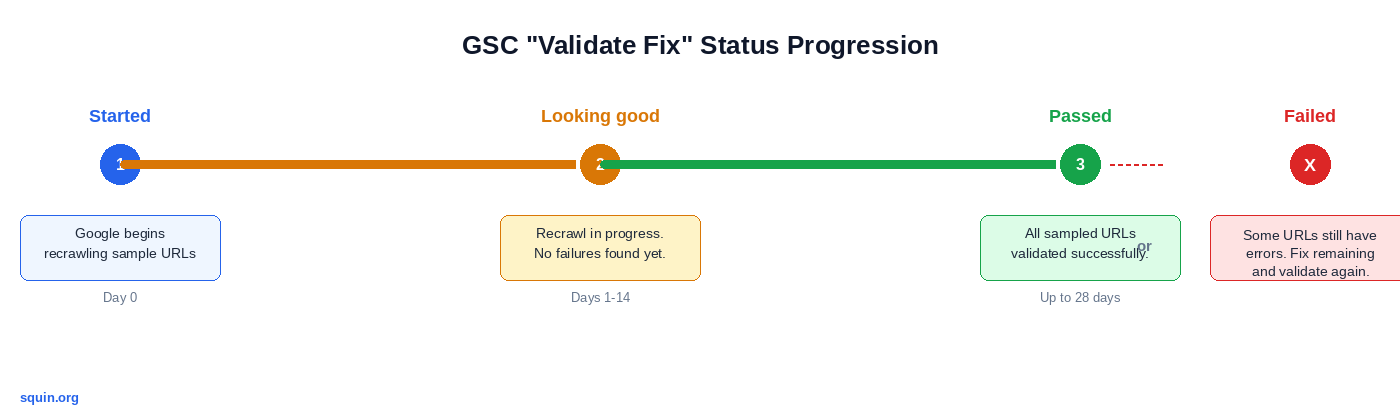
A failed validation doesn’t mean every page failed. GSC samples from the affected URLs – if enough pages still have the error, the whole batch fails. Fix the remaining pages and validate again.
The full cycle can take up to 28 days, depending on how frequently Google crawls the affected URLs. There’s no way to speed it up. If you don’t click Validate Fix, Google still re-crawls eventually through normal crawling. But you won’t see the status progression, and it takes longer.
Fixing errors confirms your markup is valid. But valid doesn’t mean visible.
How Do You Confirm Structured Data Is Actually Producing Rich Results?
A page can pass every validation check in GSC and still never show a rich result. Valid means eligible. It doesn’t mean displayed.
Google applies quality filters, page-level trust signals, and policy checks on top of schema validation. The gap between “valid markup” and “rich result shown to users” is real, and the only way to measure it is in the Performance report.
Filter the Performance Report by Search Appearance
GSC’s Performance report has a filter most people skip: Search Appearance. Open Performance → click “Search Appearance” → select a rich result type (FAQ rich results, Product snippets, Review snippets, HowTo results, and others).
This is the only place in GSC that connects structured data to actual traffic. Enhancement reports tell you markup is valid. Search Appearance tells you it’s working.
If your Product schema shows 500 valid items in the Enhancement report but zero impressions under “Product snippets” in Search Appearance, your markup is correct but Google isn’t choosing to display it. That points to page quality issues, policy violations, or schema types Google rarely surfaces for your vertical – not schema errors.
Compare impressions and clicks for rich result queries against your total organic traffic. That ratio tells you how much structured data is contributing to your search performance – and whether the implementation effort is paying off.
Monitor Rich Results Programmatically with the GSC API
Manual filtering works for small sites. For thousands of pages, you need automation.
The Search Console API exposes a searchAppearance dimension in the query method. You can filter performance data by rich result type, the same way the UI does, but across your entire URL set in a single request.
A Python example that pulls Product rich result impressions for the last 28 days:
from datetime import date, timedelta
from google.oauth2 import service_account
from googleapiclient.discovery import build

# Service account email must be added as a user in
# GSC → Settings → Users and permissions
credentials = service_account.Credentials.from_service_account_file(
    'service-account.json',
    scopes=['https://www.googleapis.com/auth/webmasters.readonly']
)

service = build('searchconsole', 'v1', credentials=credentials)

end_date = date.today().isoformat()
start_date = (date.today() - timedelta(days=28)).isoformat()

request = {
    'startDate': start_date,
    'endDate': end_date,
    # 'page' dimension shows which URLs triggered the snippet.
    # Use ['date'] instead for aggregate trend monitoring.
    'dimensions': ['page'],
    'dimensionFilterGroups': [{
        'filters': [{
            'dimension': 'searchAppearance',
            'expression': 'PRODUCT_SNIPPET'
        }]
    }],
    'rowLimit': 25000  # API maximum per request
}

response = service.searchanalytics().query(
    siteUrl='https://example.com',
    body=request
).execute()

for row in response.get('rows', []):
    print(row['keys'][0], row['impressions'], row['clicks'])
Set this up as a weekly job. If Product rich result impressions drop below your baseline, something changed – a plugin update, a template edit, or a policy shift on Google’s side. Either way, you’ll catch it in days instead of discovering it months later when organic traffic has already declined.
Performance monitoring catches the gap between valid and visible. The remaining failures are almost always preventable.
What Are the Most Common Structured Data Validation Mistakes?
Most validation failures don’t come from bad syntax. They come from assumptions about how the process works.
Assuming valid markup means you’ll get rich results. This is the most persistent misconception. The Rich Results Test confirms eligibility – your markup parses correctly and contains the required properties. It doesn’t confirm display. Google applies page-level quality signals, structured data policies, and manual review filters before showing any rich result. A page can pass validation perfectly and never generate a single rich snippet.
Testing only the raw snippet, never the live page. Your JSON-LD looks clean in isolation. Then it hits your CMS and collides with plugin-generated schema, theme-injected microdata, or conditional template logic that outputs differently in production. GeneratePress injects hAtom microformat markup by default. Rank Math adds its own JSON-LD blocks. Your carefully tested snippet becomes one of three competing structured data sources on the same page. Always test the live URL – not just the code.
Ignoring enhancement report warnings. Warnings don’t block rich results today. But they flag missing recommended properties – aggregateRating on Product, dateModified on Article – that Google may promote to required later. Every warning is technical debt with a deadline you can’t predict.
Not re-validating after updates. SEO plugins change their schema output between updates. A Rank Math or Yoast update can alter JSON-LD structure without any changelog mention. WordPress theme updates modify template files. WooCommerce patches alter Product markup. None of these send you a notification. You discover the problem weeks later when valid item counts drop in Enhancement reports. Set a calendar reminder: re-check structured data after every plugin, theme, or CMS update.
Using @type values Google doesn’t support. Schema.org defines hundreds of types. Google generates rich results for just over 30. The Schema Markup Validator will happily validate your MusicEvent or Sculpture markup as syntactically correct. Google won’t do anything with it. Check Google’s search gallery for the current list of supported types before you invest time in implementation.
Frequently Asked Questions
How do I check if my schema is working?
Use GSC’s URL Inspection tool to see structured data as Google actually indexed it. That confirms your markup was parsed and stored. Then filter the Performance report by Search Appearance to check whether it’s generating rich result impressions. If URL Inspection shows valid structured data but Search Appearance shows zero impressions, your markup works – Google just isn’t displaying it as a rich result for that page.
How do I fix unparsable structured data?
Open the unparsable structured data report in GSC. It lists every URL where Google couldn’t parse the markup at all. The most common causes are trailing commas in JSON-LD (valid in JavaScript, invalid in JSON), unclosed brackets from conditional PHP output, and HTML comments inside <script type="application/ld+json"> blocks. Fix the syntax error, then click “Validate Fix” in the report to trigger a priority recrawl.
Does passing the Rich Results Test guarantee rich snippets?
No. The test confirms your markup is valid and eligible for a specific rich result type. Google applies additional quality checks, policy filters, and page-level signals before choosing to display it. Filter the GSC Performance report by Search Appearance to see whether Google is actually showing rich results for your pages.
What replaced the Google Structured Data Testing Tool?
Google retired the Structured Data Testing Tool and replaced it with two separate tools. The Rich Results Test checks whether your markup qualifies for Google’s supported rich result types and renders JavaScript. The Schema Markup Validator at validator.schema.org checks syntax against the full Schema.org vocabulary, including types Google doesn’t use for rich results.
Where This Fits
This article is part of our structured data coverage. For pre-deployment validation, work through the Rich Results Test guide. If you’re implementing Product markup specifically for merchant listings, the Product schema guide covers every required property.