
The Rich Results Test checks one URL. Google Search Console reports aggregate errors. Neither gives you a crawl-level view of every schema type, every @id reference, and every validation failure across your entire site. Screaming Frog does. This guide covers configuration, the built-in Structured Data tab’s filtering and issue categorization, bulk validation via Google Rich Results validation mode, custom XPath and Regex extraction for nested JSON-LD values, and the entity consistency checks that separate a schema audit from a surface-level check — all as part of a broader semantic SEO tools guide workflow.
How Do You Configure Screaming Frog for Structured Data Extraction?
Screaming Frog doesn’t extract structured data by default. You turn it on, choose what to validate against, and decide how to read the results. Three decisions, and each one changes what the crawl produces.
Enabling Extraction and JavaScript Rendering
Go to Configuration > Spider > Extraction > Structured Data and enable the format toggles for JSON-LD, Microdata, and RDFa. Enable only the formats your site actually uses. Turning on all three adds parsing overhead on large crawls for data you’ll never look at.
Extraction alone isn’t enough if your schema loads client-side. Go to Configuration > Spider > Rendering and switch from “Text Only” to “JavaScript.” Without this, Screaming Frog parses raw HTML and misses anything injected by your CMS, a React app, or a tag manager.
One gotcha with JavaScript rendering: AJAX timeout. The default is 2 seconds. Schema injected by Google Tag Manager or similar tag managers often loads after other scripts finish executing. If your structured data doesn’t appear in the extraction despite JS rendering being enabled, increase the timeout under Configuration > Spider > Advanced > Response Timeout. Start with 10 seconds and check whether the missing types appear.
Google uses mobile-first indexing. If your site serves different markup to mobile and desktop user agents — legacy sites with separate mobile templates are the main risk case — set Screaming Frog’s User-Agent to Googlebot Smartphone under Configuration > User-Agent. A desktop crawl of a site that serves different schema to mobile gives you results that don’t match what Google indexes. You won’t catch it until GSC reports errors you can’t reproduce.
Choosing Between Schema.org and Google Rich Results Validation
Schema.org validation and Google Rich Results validation check against different rule sets.
Schema.org validation checks the full vocabulary specification — every type, every property, every expected value format defined at schema.org. Google Rich Results validation checks against Google’s subset: the specific types and properties that Google actually processes for Google’s rich results.
The gap matters. A Service type can be perfectly valid Schema.org and produce zero Google rich results, because Google doesn’t support Service for any rich result feature. An Organization with a logo property passes Schema.org validation but triggers a Google warning if the image doesn’t meet minimum resolution requirements.
| Schema.org Validation | Google Rich Results Validation | |
|---|---|---|
| Checks against | Full schema.org vocabulary | Google’s supported subset |
| Catches | Invalid types, wrong property values, vocabulary errors | Missing required/recommended properties for rich results |
| Misses | Google-specific requirements (image size, URL format) | Valid schema.org types Google doesn’t process |
| Use when | Building for Bing, AI answer engines, or internal knowledge graphs | Running a production audit targeting Google rich results |
For most production audits, use Google Rich Results validation. Switch to Schema.org validation when you’re implementing types for consumers beyond Google — Bing’s Webmaster Tools, AI-powered answer engines, or your own internal entity graph.
Reading the Structured Data Tab and Issues Filters
After the crawl finishes, the Structured Data tab shows every detected type, the URL where it was found, validation status, and specific errors or warnings per property. This is where most audit work happens before you need Custom Extraction.
Screaming Frog categorizes problems into issue types: “Missing Required Property,” “Missing Recommended Property,” and format-specific warnings. Filter by issue type to prioritize. Required property violations block rich result eligibility. Recommended property warnings don’t block anything but affect how Google displays your result. Different urgency levels.
The Area filter separates results by format — JSON-LD, Microdata (HTML), or RDFa. Essential if you’re migrating from Microdata to JSON-LD. Filter to Microdata, and you’ve got a complete list of pages still carrying legacy markup that needs to be removed after the JSON-LD replacement is live.
To share validation results with a development team, go to Reports > Structured Data for a bulk export of the full structured data report — errors, warnings, and types per URL. This is separate from right-clicking rows in the tab or exporting the main crawl overview.
The built-in tab answers one question: what schema exists and is it valid? Custom Extraction answers a different question: what specific values are inside that schema? “Is our schema correct?” is a different request than “what rating value is our Product schema actually outputting on each PDP.” The first question stays in this tab. The second needs Custom Extraction.
How Does Screaming Frog’s Google Rich Results Validation Compare to the Rich Results Test?
Screaming Frog’s Google Rich Results validation mode checks your schema against a local rule set based on Google’s documented requirements. It doesn’t send URLs to Google’s parser. That’s a critical distinction — people searching for a rich results API Screaming Frog integration won’t find one, because it doesn’t exist. The Configuration > API Access menu connects to Google Search Console, PageSpeed Insights, Ahrefs, Majestic, and Moz. No Rich Results API option.
What the built-in validation does: it checks every crawled URL’s structured data against Google’s known required and recommended properties for each supported type. A Product missing offers gets flagged. A FAQPage missing name on an individual Question gets flagged. This runs locally during the crawl — no API key, no rate limits, no quota.
What it doesn’t do: confirm that Google’s actual parser would produce a rich result for that page. The built-in validation applies documented rules. Google’s live parser applies those rules plus undocumented requirements, rendering behavior, and eligibility logic that changes without notice. Schema can pass Screaming Frog’s Google Rich Results validation and still fail the Rich Results Test.
The gap shows up in specific ways. Screaming Frog’s local validation won’t catch a FAQPage where the answer contains HTML elements Google’s parser silently strips. It won’t catch an Event where Google requires a specific date format the Schema.org spec doesn’t mandate. It won’t detect that Google has stopped showing a particular rich result type for certain query categories. These are parser-level and ranking-level decisions that only Google’s live tool surfaces.
To bridge the gap, export the URLs that pass Screaming Frog’s validation and run them through the Rich Results Test. For single URLs, paste directly. For batches, the Rich Results Test guide covers workflows for testing multiple pages. There’s no way to bulk-validate against Google’s live parser from inside Screaming Frog — that step happens outside the tool.
Google’s structured data policies define what disqualifies markup even when it’s technically valid. Schema that represents content differently than what appears on the page. Markup on pages behind a login wall. Markup for content not visible to the user. Screaming Frog’s validation catches structural violations. Policy violations that require human review — misleading review markup, hidden content — won’t surface in any automated validation pass, local or otherwise.
Screaming Frog’s validation tells you whether your schema meets Google’s documented requirements at crawl scale. The Rich Results Test tells you whether Google’s parser actually accepts it, one URL at a time. Use both. Screaming Frog first to find and fix structural errors across the site, then the Rich Results Test on a sample to confirm Google agrees.
Validation — local or live — covers whether schema is correct. It doesn’t tell you what specific values your schema contains across thousands of pages. That’s where Custom Extraction comes in.
How Do You Extract Nested Schema Values with Custom XPath and Regex?
The Structured Data tab tells you what types exist and whether they validate. It doesn’t tell you what specific values your schema contains across thousands of pages. Custom extraction xpath schema queries pull the raw JSON-LD blocks. Regex patterns extract individual property values from inside them. Together, they answer questions like “what @id is each page using” or “what ratingValue does every Product page actually output.”
Custom Extraction requires a paid Screaming Frog licence. The free version shows the configuration interface but won’t run extractors.
Go to Configuration > Custom > Custom Extraction. You get up to 100 extraction slots. Each one takes a name, a type (XPath, Regex, or CSSPath), and the expression itself.
XPath Expressions for Common JSON-LD Fields
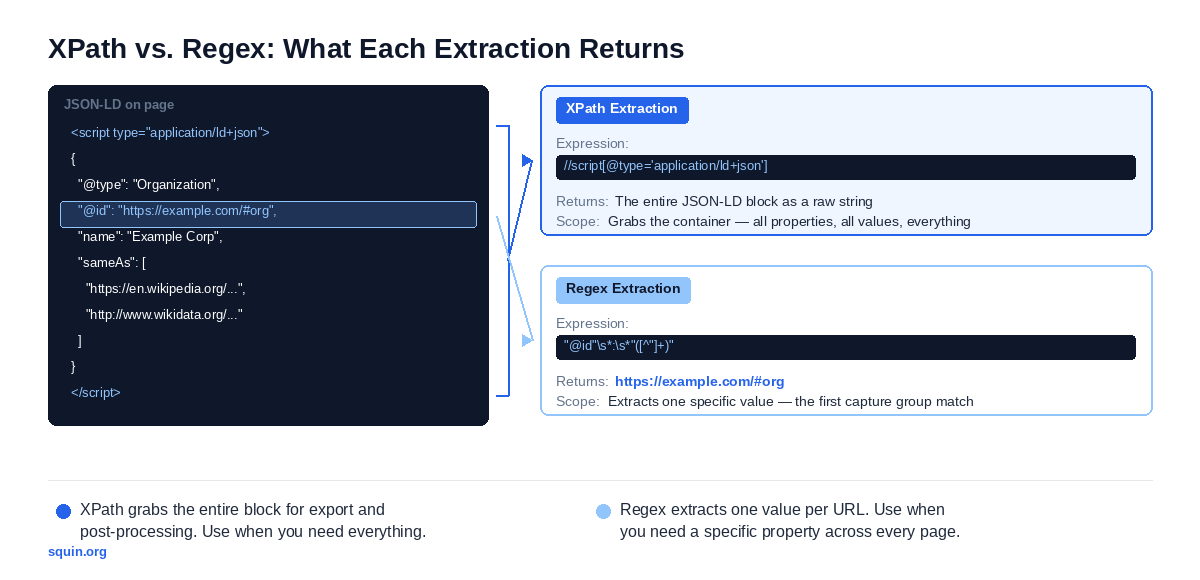
XPath operates on the HTML DOM. It can locate and return the contents of a <script> element. It can’t query JSON properties inside that element — that’s a fundamental limitation. You grab the block with XPath, then either use Regex for specific values or export and post-process.
The base expression that returns every JSON-LD block on a page:
//script[@type='application/ld+json']
Most pages have one block. Some have several — a WebPage type injected by the CMS, a Product type from the e-commerce platform, a BreadcrumbList from a plugin. Target a specific block by position:
//script[@type='application/ld+json'][1]
//script[@type='application/ld+json'][2]
Position-based extraction is fragile. If a plugin adds or removes a block, the indices shift and your extraction pulls the wrong data. For sites using @graph architecture — where multiple entities live inside a single <script> block rather than separate blocks — position targeting is irrelevant because there’s only one block. The JSON-LD tutorial covers @graph architecture and @id referencing patterns.
One additional edge case: if the JSON inside the <script> tag is malformed — unclosed brackets, trailing commas, invalid escaping — the XPath still returns the raw string, but Screaming Frog’s structured data parser may fail to detect the schema type. You’ll see the block in Custom Extraction output but nothing in the Structured Data tab. When those two disagree, check the raw JSON for syntax errors.
Set the extraction to “Extract Text” rather than “Extract HTML” unless you need the raw <script> tag wrapper. Text extraction gives you the JSON string directly, which is what you’ll feed into Regex or a JSON parser.
Regex Patterns for JSON-LD Value Extraction
Set the extraction type to “Regex” when you need a specific property value, not the entire block. Screaming Frog returns the first capture group — the part inside the parentheses.
Working patterns for screaming frog json-ld extraction regex. Copy these directly into the Regex field:
Extract @type:
"@type"\s*:\s*"([^"]+)"
Extract @id:
"@id"\s*:\s*"([^"]+)"
Extract a single sameAs URL:
"sameAs"\s*:\s*"(https?://[^"]+)"
Extract ratingValue from an aggregateRating:
"ratingValue"\s*:\s*"?([0-9.]+)"?
The "? on each side handles both quoted strings ("4.5") and raw numbers (4.5). Schema.org accepts either format, and CMS output varies — Rank Math quotes the value, WooCommerce often doesn’t.
Extract name (first occurrence):
"name"\s*:\s*"([^"]+)"
Each pattern returns one value per URL. Screaming Frog’s Regex extraction returns the first match from a single page — if your schema has three sameAs URLs in an array, only the first comes back. For full array extraction, pull the entire block with XPath, export, and parse with a script or a JSON tool like jq.
| XPath | Regex | |
|---|---|---|
| Returns | Entire JSON-LD block as a string | A single value from inside the block |
| Use when | You need the full schema content for export or post-processing | You need one specific property across every URL |
| Limitation | Can’t query JSON properties natively | Fragile against property order changes, nested arrays, and inconsistent whitespace |
Regex against JSON is inherently fragile. Property order isn’t guaranteed. Whitespace varies between minified and pretty-printed output. Spot-check your extracted values against the actual page source on 5–10 URLs before trusting a full export. If the pattern returns blanks on pages you know have the property, check whether the JSON is minified — \s* handles some whitespace variation, but not all.
Export the extraction results to a spreadsheet. Sort by the extracted column. Inconsistencies surface immediately — a @type that’s “Product” on 4,000 pages and “product” on 3, an @id that switches format between /product/123 and https://example.com/product/123. These aren’t validation errors. They’re entity consistency problems that no validator catches. That’s the next section.
How Do You Audit Entity Consistency Across a Full Crawl?
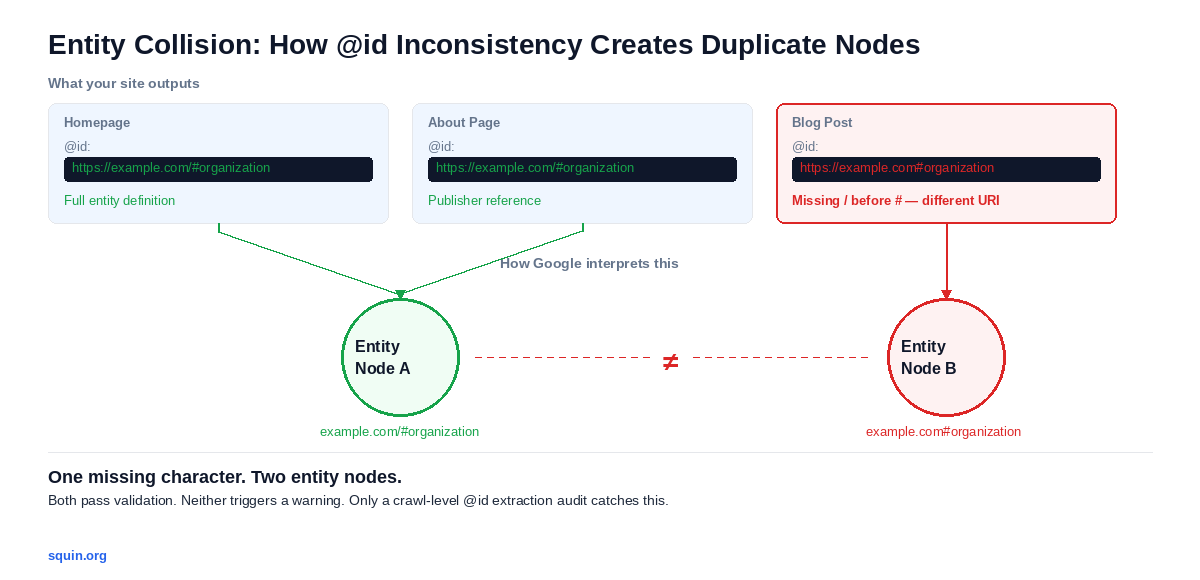
Validation tells you whether your schema is syntactically correct. It doesn’t tell you whether your entities are consistent. An Organization type can pass every validator on every page and still create duplicate entity nodes in Google’s knowledge graph because the @id string varies between /about, /contact, and your homepage. No validator catches this. Screaming frog entity mapping through Custom Extraction does.
Checking @id, sameAs, and Cross-Domain References
Set up two Custom Extraction slots using the Regex patterns from the previous section — one for @id, one for sameAs. Crawl the site. Export both columns alongside the URL.
The sameAs pattern returns only the first URL from an array. To capture all sameAs values, use a separate extractor for each expected position in the array, or pull the full JSON-LD block via XPath and parse the array externally after export.
The audit starts with one question: does every @id value that appears as a reference somewhere on the site also appear as a full entity definition on at least one page?
A concrete example. Your Organization schema uses this @id across the site:
{
  "@type": "Organization",
  "@id": "https://example.com/#organization",
  "name": "Example Corp",
  "sameAs": [
    "https://en.wikipedia.org/wiki/Example_Corp",
    "http://www.wikidata.org/entity/Q12345678"
  ]
}
If your blog posts reference the publisher as "@id": "https://example.com#organization" — missing the slash before the hash — that’s a different identifier. Two entity nodes instead of one. Sort the @id export column and look for near-duplicates. Common variations: trailing slashes, http vs. https, hash fragments with and without a preceding slash, relative vs. absolute URLs. All of these create distinct nodes in any system that treats @id as a URI.
The sameAs check works the same way. Export the sameAs column and run a duplicate filter across the full dataset. Sort by the sameAs value, then apply Remove Duplicates or a pivot table to find two problems:
- Semantic collision. The same
sameAsURL — say, a Wikipedia page — appears attached to different@idvalues on different pages. You’ve told Google that two supposedly different entities are actually the same external thing. This happens when a company and its founder both link to the same Wikipedia article, or when a product and a brand share a Wikidata reference that should only belong to one of them. - Inconsistent signal. A single entity appears with different
sameAssets on different pages. YourOrganizationlinks to Wikipedia, Wikidata, and LinkedIn on the homepage but only Wikipedia and LinkedIn on the about page. Every page that defines the entity should carry the same set. Inconsistency doesn’t break anything — it weakens the disambiguation signal by giving Google conflicting information about which external references define the entity.
Entity disambiguation covers resolving ambiguous entities before auditing their schema. The audit step assumes you’ve already decided which entities your site defines and which external URIs map to each one. If that mapping doesn’t exist yet, start there.
For sites using tools that auto-generate schema, compare what the tool outputs against what Screaming Frog actually extracts from the rendered page. Our InLinks review covers what that tool generates. The full schema.org type hierarchy is the reference for verifying that your @type values are valid and specific enough.
What Changes at 100k+ URLs
Past roughly 50,000 URLs with structured data extraction enabled, Screaming Frog’s default memory storage becomes a problem. Switch to Database Storage under File> Setting > Storage Mode before you start the crawl. You can’t switch after the crawl finishes.
Database Storage changes how you work with the results. In memory mode, everything lives in RAM and disappears when you close the project. In database mode, Screaming Frog writes crawl data to disk, which means you can reopen the project, filter, and search without re-crawling. For entity audits, use the search function on the Structured Data tab to find a specific @id pattern across the entire dataset without exporting to a spreadsheet first.
Two rules for large crawls. First: if you’re running both Schema.org and Google Rich Results validation, consider running extraction only on the initial pass. Add validation on a second, targeted crawl of the URLs or template types that matter. On large crawls, the additional parsing adds time you don’t need on the first pass.
Second: segment by template type. A site with 200,000 product pages doesn’t need schema extracted from all of them. Crawl 500 product URLs, 500 category URLs, and every unique template page. If the schema is template-driven, 500 pages per template gives you the consistency picture. If it’s not template-driven, you’ve got a bigger problem than Screaming Frog can solve.
On modern hardware with 32GB+ RAM, database storage handles 500,000+ URLs. Past a million, expect multi-hour crawls and exports in the gigabytes. Reduce RAM allocation if you’re running extraction without JS rendering. With JS rendering enabled, RAM is the bottleneck before disk I/O.
Extraction, validation, and entity consistency give you a complete picture of what your structured data contains and whether it’s correct. The harder question is what happens when schema validates but still doesn’t produce rich results. That’s a different diagnostic process.
How Do You Diagnose Schema That Validates But Doesn’t Trigger Rich Results?
Valid schema doesn’t guarantee rich results. Google’s documentation states this directly: meeting the structured data requirements is necessary but not sufficient per its structured data policies. Your markup can pass every validator — Screaming Frog’s built-in checks, its Google Rich Results validation mode, the Rich Results Test — and still produce nothing in search results. Diagnosing screaming frog schema validation errors that don’t correspond to missing rich results requires checking a different set of causes.
Work through these in order. Each one rules out a category.
- Page not indexed. No index, no rich result. Check Google Search Console’s URL Inspection tool. If Google hasn’t indexed the page, the schema on it doesn’t exist as far as search results are concerned. Fix indexing first.
- JavaScript rendering gap. Screaming Frog’s renderer and Google’s Web Rendering Service aren’t identical. A page that renders schema correctly in Screaming Frog can fail in Google’s renderer — or the reverse. Cross-check with the Rich Results Test, which uses Google’s own rendering pipeline. GTM-injected schema is the usual culprit. If your tag manager fires the schema script after a timeout threshold that Google’s renderer doesn’t wait for, the markup never reaches Google’s parser. This connects directly to the AJAX timeout configuration covered in §1.
- Cached markup mismatch. Your CDN serves stale HTML. You updated the schema in your CMS, the Rich Results Test shows the new version because it fetches live, but Google’s last crawl pulled the cached version without the update. Check the cached version of the page in Google’s search results. If it doesn’t match what you see in view-source, your CDN is the problem.
- Type not eligible. Google processes a specific subset of schema.org types for rich results. A valid
Servicetype produces no rich result because Google doesn’t support it. A validLocalBusinessproduces no rich result on a query where Google chooses not to show that format. The type has to be both supported and triggered by the query context. - Spam policy violation. Markup that represents content differently than what appears on the page violates Google’s structured data policies. A
Productwith aratingValueof 4.9 on a page with no visible reviews. AFAQPagewith answers that don’t appear in the page content. Google can suppress rich results for policy violations without reporting an error. No warning, no notification. Just absence.
One diagnostic that rules out most of these at once: paste the live URL into the Rich Results Test. If Google’s tool shows the rich result preview, the schema and rendering are fine — the issue is indexing, caching, or Google choosing not to display the format for specific queries. If the Rich Results Test doesn’t show the preview, the problem is in the markup or rendering, and you can narrow it from there.
The pattern across all five causes is the same. Validation checks syntax. Rich results require syntax plus indexing, plus rendering, plus eligibility, plus policy compliance. Screaming Frog handles the syntax layer across your entire site. The diagnostic checklist handles everything else, one URL at a time.
Most of these problems trace back to a configuration or workflow mistake made before the audit started. The common ones form a short, specific list.
What Are the Most Common Mistakes in Screaming Frog Schema Audits?
Six mistakes. All of them waste time, produce misleading data, or both.
- Forgetting to enable extraction before crawling. Structured data extraction is off by default. If you crawl first and enable it after, you re-crawl the entire site. On a 100,000-page site, that’s hours lost because of one checkbox.
- Crawling in Text Only mode when schema requires JavaScript. Your CMS injects JSON-LD server-side. Your tag manager injects it client-side. If you don’t know which, you don’t know whether Text Only mode captures everything. Check one page manually — view source versus rendered output. If the schema only appears in the rendered version, you need JavaScript rendering enabled.
- Using Schema.org validation and assuming Google’s requirements are covered. They’re not. Schema.org validation confirms vocabulary compliance. Google adds its own required and recommended properties on top. A
Recipetype that’s valid Schema.org but missingimagewon’t trigger a rich result. Use Google Rich Results validation for production audits. - Treating warnings as errors. Recommended property warnings don’t block rich results. Missing required properties do. Fixing every warning before addressing the errors inverts the priority. The reverse is equally wrong — ignoring warnings entirely means missing the properties that improve how Google displays your result.
- Exporting the full dataset without filtering first. A 50,000-URL crawl with extraction enabled produces an export with every type on every page. Filter to the specific type, property, or issue you’re investigating before exporting. An unfiltered export in a spreadsheet is noise.
- Not re-crawling after fixes. You found the errors, fixed the templates, deployed the changes. Then you looked at the same crawl data and assumed the fixes worked. Stale data. Re-crawl the affected URLs — or at minimum, spot-check with List mode (Mode > List, paste the fixed URLs) on 10–20 pages — before reporting that the issues are resolved.
Frequently Asked Questions
Does Screaming Frog check schema markup?
Yes. Enable structured data extraction under Configuration > Spider > Extraction > Structured Data. Screaming Frog parses JSON-LD, Microdata, and RDFa from every crawled URL and reports types, properties, errors, and warnings in the Structured Data tab.
How do you extract schema from Screaming Frog?
Two methods. The built-in Structured Data tab extracts all detected schema types and validation results automatically. For specific property values — @id, sameAs, aggregateRating — use Custom Extraction with XPath or Regex under Configuration > Custom > Custom Extraction.
Can Screaming Frog validate against Google’s rich results requirements?
Yes. When enabling structured data extraction, select the Google Rich Results validation mode instead of Schema.org validation. This checks your schema against Google’s documented required and recommended properties for each supported type — locally, during the crawl. It doesn’t send URLs to Google’s parser. To confirm Google’s live parser agrees with the results, export the validated URLs and test a sample in the Rich Results Test.
How do you find pages missing schema in Screaming Frog?
After crawling with structured data extraction enabled, filter the Structured Data tab to show pages where the structured data column contains no type. The result is every crawled URL with no detected markup. That’s your starting list for identifying which templates need schema added.
Where This Fits
Screaming Frog handles the crawl-level extraction and validation layer of a structured data workflow. For the full tool stack — from entity research to content optimization to schema validation — the semantic SEO tools guide covers the complete picture. The Rich Results Test guide covers single-URL validation when you need to test one page against Google’s parser directly. The JSON-LD tutorial covers building the markup that Screaming Frog audits.